

Tutorials
How to Disable Task Manager
🔻 Speed Scroll 🔻
If you’re looking for ways to disable Task Manager on Windows 11, you’re in the right place. Disabling Task Manager can be helpful when you want to prevent users from closing important processes or accessing certain system resources. This guide will walk you through the steps to turn off Task Manager on Windows 11 using methods like Group Policy or Registry Editor. With these Task Manager restrictions in Windows 11, you can control who can access and manage system tasks.
Methods to Disable Task Manager on Windows 11
In this article, We’ll guide you through 4 Methods to disable task manager on Windows 11 by using PowerShell, the Command Prompt and Registry Editor, and Group Policy.
Important Note: Disabling Task Manager can be severely restricted in its ability to help with troubleshooting and recovery of the system from failure. Apply it, but use it with care.
- TABLE OF CONTENTS
- How to Disable Task Manager on Windows 11 – FAQs
Method 1: How To Disable Task Manager Using Windows PowerShell
Enabling or Disabling Task Manager can be done through Windows PowerShell. Here are the steps Below.
This method uses PowerShell cmdlets to change system registry settings, which hides Task Manager from the user interface.
Step 1: Press Win + S on the search bar and type “Windows PowerShell”
Step 2: Select “Run as Administrator” from the context menu when you right-click on the program.
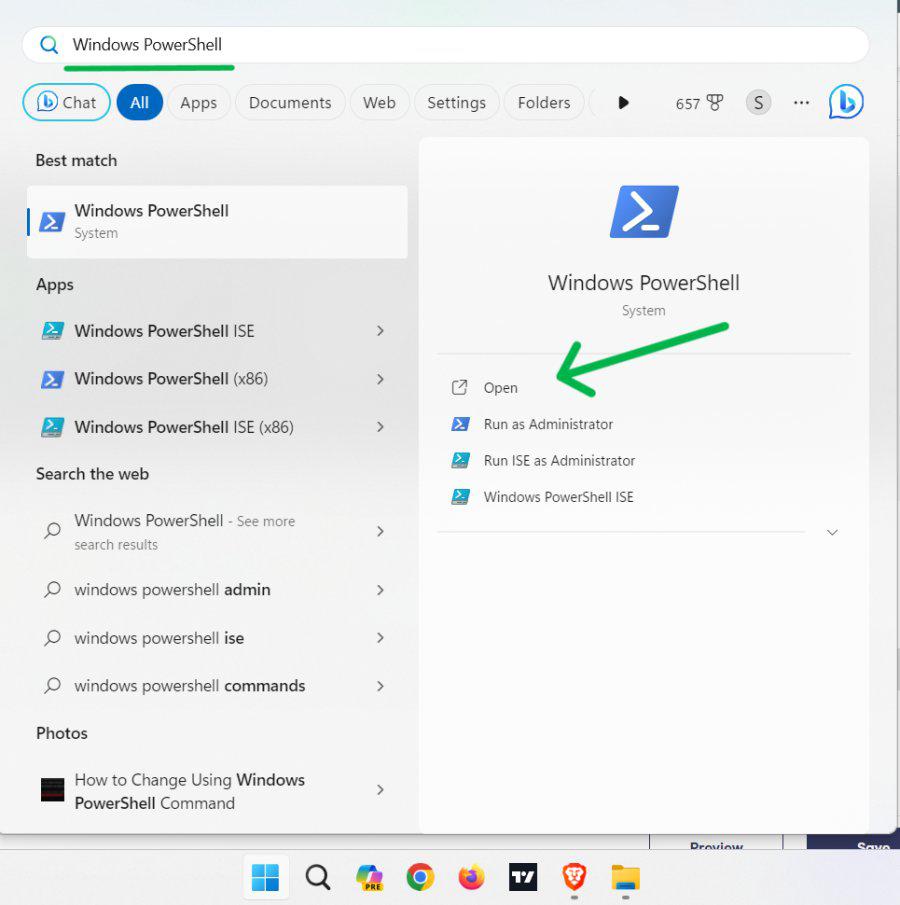
Step 3: Enter the command
Set-ItemProperty -Path HKCU:\Software\Microsoft\Windows\CurrentVersion\Policies\System -Name DisableTaskMgr -Value 1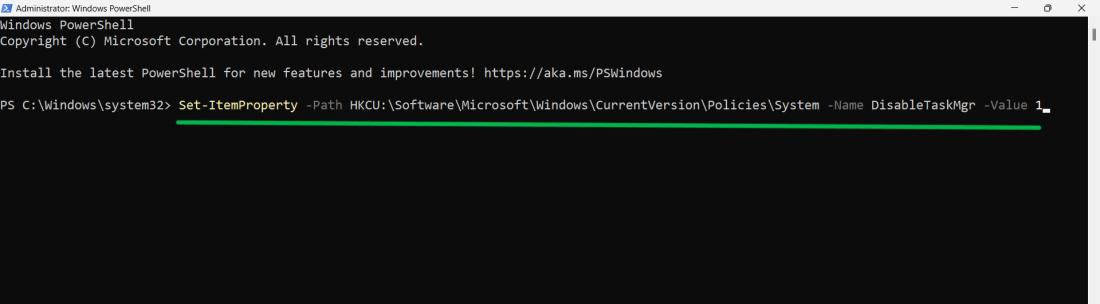
Step 4: For the changes to take effect, restart your computer.
Method 2: How To Disable Task Manager On Windows Using Command Prompt
Just like PowerShell, this is a method you can try to disable task manager on PC by Command Prompt commands.
Step 1: Press Win + S on the search bar and type “Command Prompt”
Step 2: Select “Run as Administrator” from the context menu when you right-click on the program.
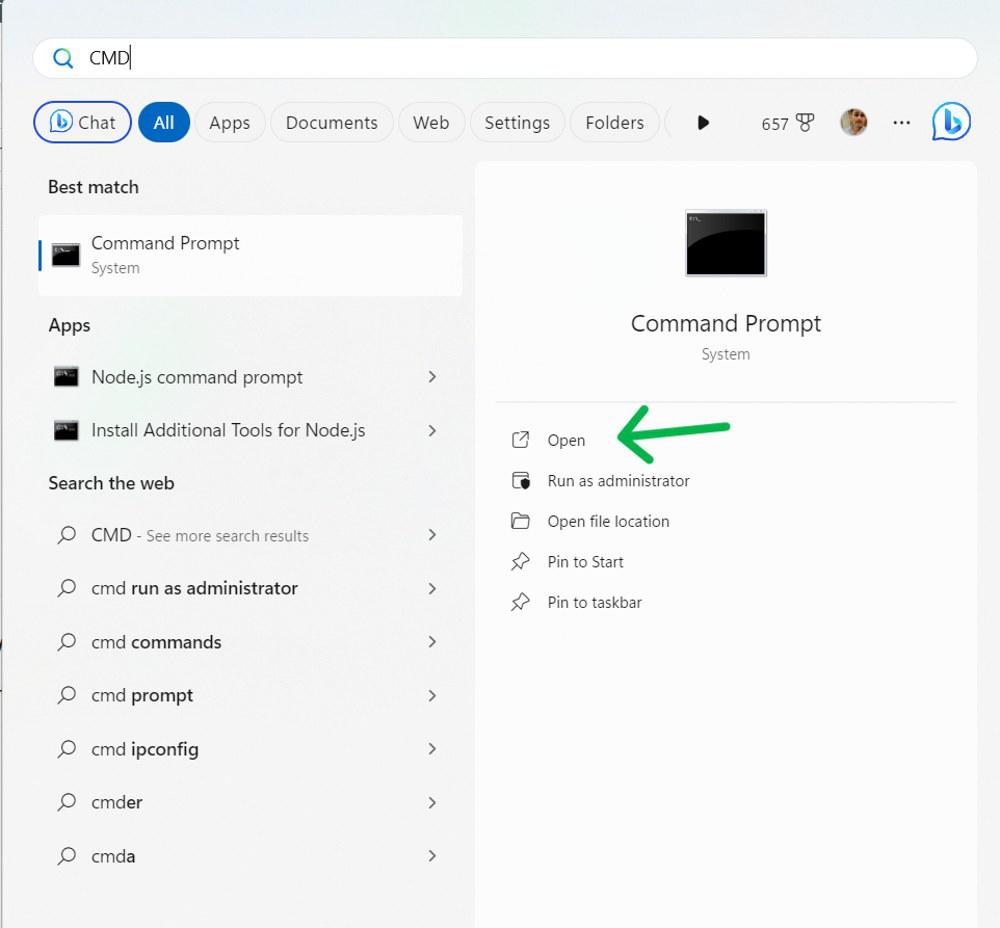
Step 3: Enter this command which is written below
reg add HKCU\Software\Microsoft\Windows\CurrentVersion\Policies\System /v DisableTaskMgr /t REG_DWORD /d 1 /f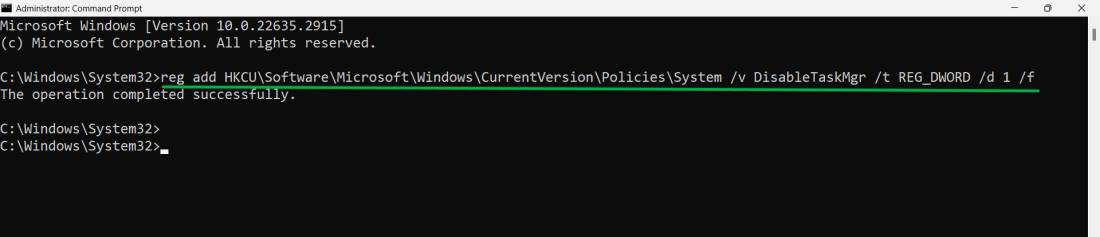
To reenable Task Manager enter this command:
reg add HKCU\Software\Microsoft\Windows\CurrentVersion\Policies\System /v DisableTaskMgr /t REG_DWORD /d 0 /fMethod 3: How To Disable Task Manager On Windows Using Registry Editor
These are the simple steps you can try to turn off the task manager using Registry Editor.
IMP : Because this involves modifying the registry, it’s crucial to create a backup or system restore point beforehand. This ensures you can revert to a previous state if any issues arise. Once you’ve taken this precaution, proceed with the following steps:
Step 1: Press Win + S on the search bar and type “Registry Editor”
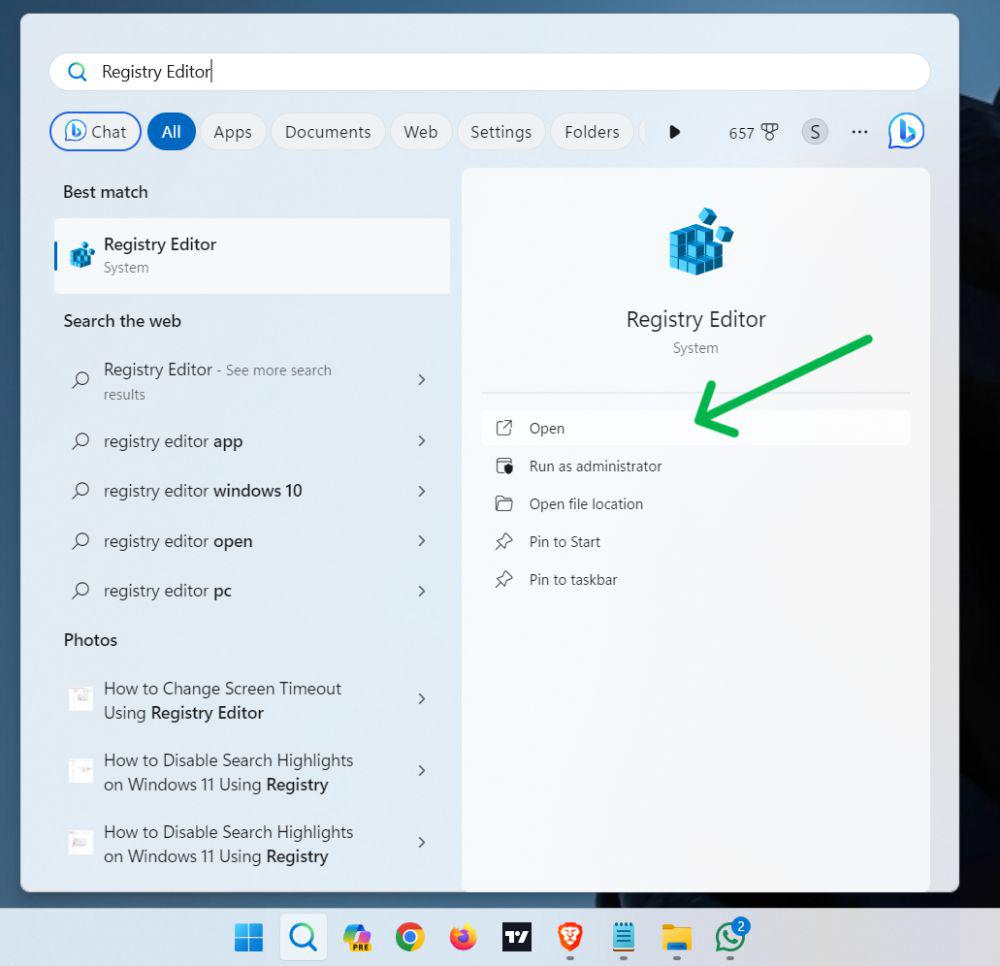
Step 2: Navigate to HKEY_CURRENT_USER\Software\Microsoft\Windows\CurrentVersion\Policies\System
Step 3: If not exist DisableTaskMgr then Create a DWORD (32-bit) value named DisableTaskMgr and set its data to 1.
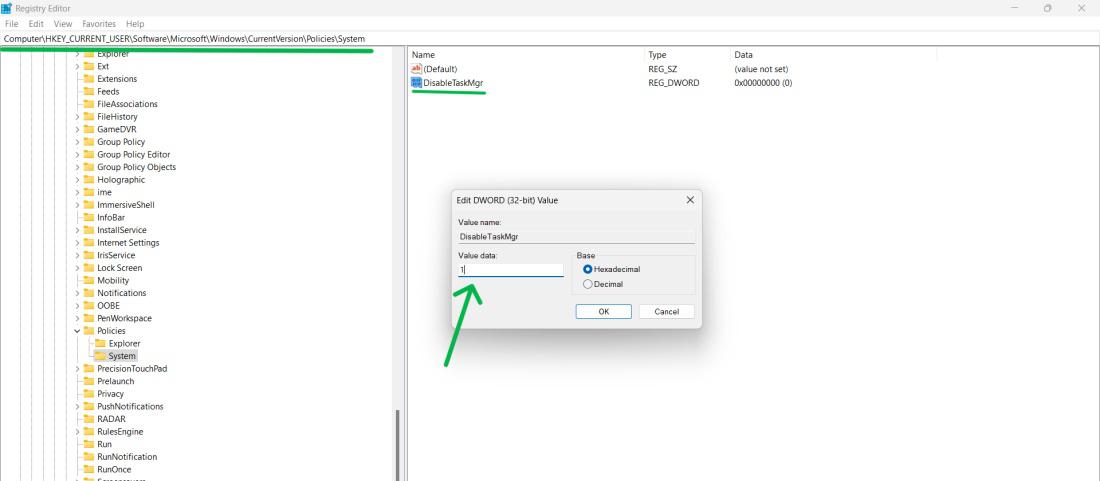
Step 4: Click OK
Step 5: For the changes to take effect, restart your computer.
Method 4: How to Disable Task Manager on Windows 11 via Group Policy
If you want to disable Task Manager on your pc, you can utilize the Group Policy Editor. However, this method is only applicable to Windows Pro or Enterprise editions. If you’re using a different version like Windows Home, you’ll need to activate your Local Group Policy Editor first.
Group Policy provides centralized management of system settings. To disable Task Manager using the Local Group Policy Editor, follow these steps:
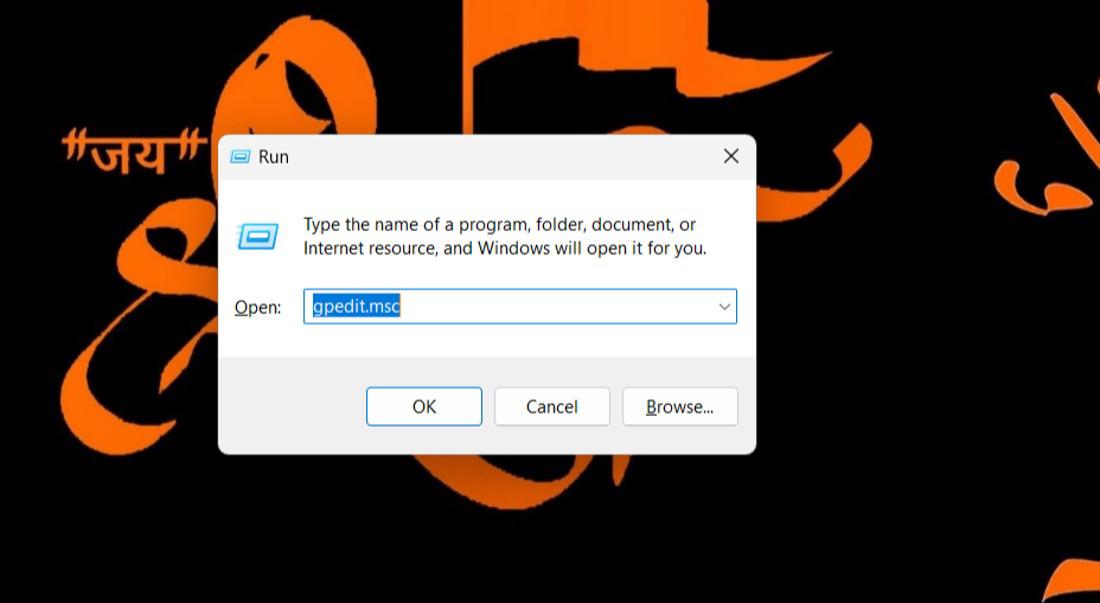
Step 1: Press Win + R then on run dialog type gpedit.msc click on OK or hit enter.
Step 2: Navigate to Computer Configuration > Administrative Templates > System > Ctrl+Alt+Del Options.
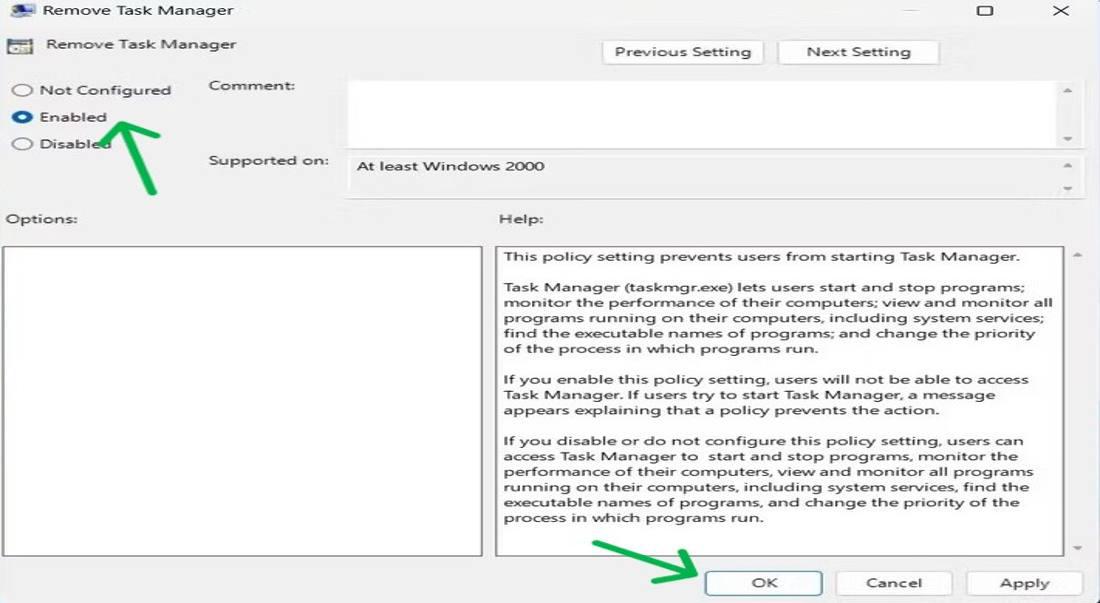
Step 3: Double-click on “Remove Task Manager”.
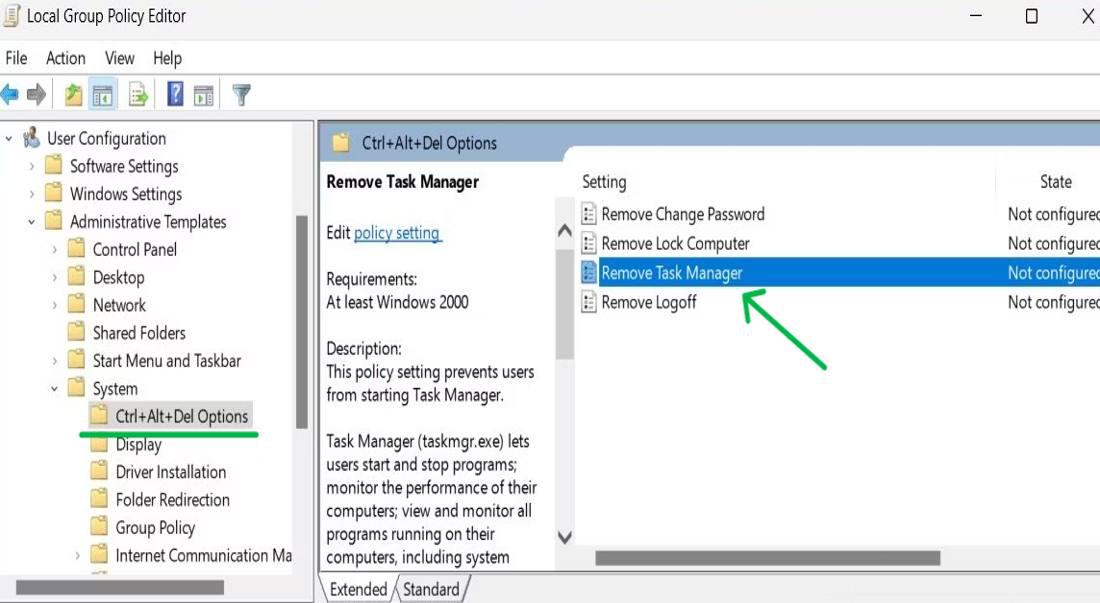
Step 4: Check the “Enabled” then click on Apply to save the change then on “OK“
Conclusion
Knowing how to disable Task Manager on Windows 11 can be a useful tool for maintaining security or managing system processes. By following the methods provided in this guide, whether through Group Policy or the Registry Editor, you can effectively control access to Task Manager. These Task Manager security settings on Windows 11 ensure that users cannot interrupt essential system processes or tamper with configurations.

How to Disable Task Manager on Windows 11 – FAQs
What is Task Manager and why disable it?
Task Manager is a tool, in Windows that allows users to monitor and manage processes, performance metrics and services. There might be situations where you’d want to disable it for security or restriction purposes.
How can I activate Task Manager if it has been disabled?
To re enable Task Manager you can simply reverse the steps you took to disable it. For instance if you utilized the Group Policy Editor you can select “Not Configured” of “Enabled” within the Remove Task Manager policy.
How do I disable Task Manager on Windows 11?
You can disable Task Manager on Windows 11 by accessing the Group Policy Editor. Navigate to User Configuration > Administrative Templates > System > Ctrl+Alt+Del Options, and select Remove Task Manager. Alternatively, you can use the Registry Editor to achieve the same result.
Can I re-enable Task Manager after disabling it?
Yes, you can easily re-enable Task Manager by reversing the steps used to disable Task Manager access. If you used Group Policy, simply disable the Remove Task Manager option, or delete the registry key if you modified the Registry.
Why would I want to disable Task Manager?
Disabling Task Manager is useful in situations where you want to prevent users from closing critical applications or services. It also helps ensure system stability by restricting access to system-level tasks.
What does Alt + F4 do?
Alt + F4 closes the active window.
- Programs: Closes the entire program (browser, game, etc.).
- Documents: Might only close the current document (e.g., Word).
- Desktop: Brings up shutdown options (Windows only).
Will disabling Task Manager affect system performance?
” Disabling Task Manager will not directly affect a user’s system performance, but it will prevent users from accessing the Task Manager to monitor or end processes. Ensure this action aligns with your security and management goals. “




