

Raspberry Pi Tutorial
Install Android on Raspberry Pi
🔺 Speed Scroll 🔺
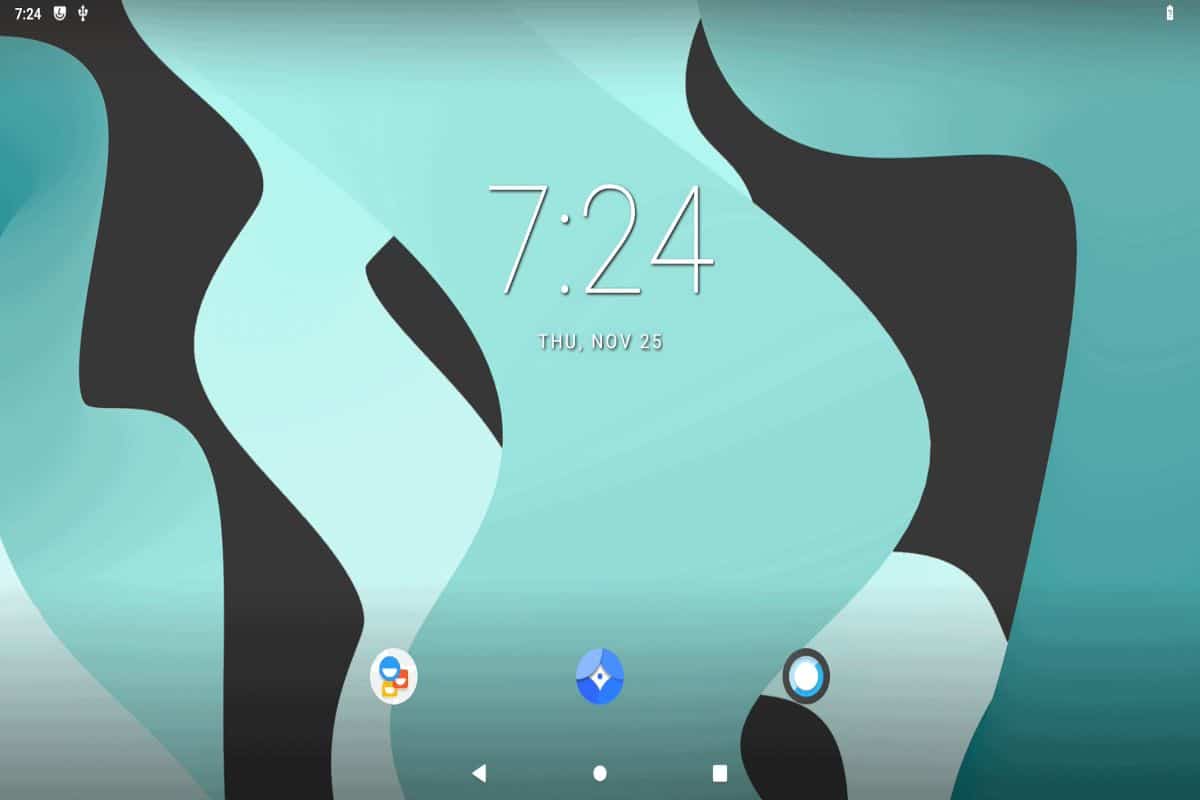
How to Install Android on Raspberry Pi in 2026 (+Play Store)
Installing Android on Raspberry Pi has always been a challenge. But thanks to the work of several developers, this task has become easier over the years. In this article, I share with you the latest method to get it running on your Pi (including the Play Store to install any app you like).
To install Android on a Raspberry Pi, a custom image is required, since Google doesn’t have any version available for the Raspberry Pi. Additionally, accessing the Play Store requires a custom Google Apps build.
This process is very different from what you might be used to when installing new operating systems on your Pi. But don’t worry, I’ll explain all the steps in detail, with illustrations to make sure you can follow along.
Table of Contents
- Key Challenges to Running Android on Raspberry Pi
- Installing Android on Raspberry Pi
- Installing Google Play Store on Android
- Video Demonstration
- Related Questions
Key Challenges to Running Android on Raspberry Pi
I don’t want to start off with something boring, but there are some few important things to know before the technical steps to installing Android.
Proprietary vs. Open-Source
The core of the Android system is open-source, but the Play Store and other Google apps are proprietary applications.
Android is a Google product created for smartphones and tablets. Only partners (manufacturers) can get the full version and install it on their products—after being approved by Google. Support for Raspberry Pi is clearly not Google’s priority.
It’s not only a problem for the Raspberry Pi, but also for many other devices. Some people are also interested in an open-source version of Android. That’s why projects like Emteria and LineageOS have been created.
LineageOS is a free and open-source version of Android created for tablets and smartphones. It comes with a few basic applications (browser, calendar, calculator, etc.), but it doesn’t come with any Google applications or any useless preinstalled bloatware.
Does LineageOS Work on Raspberry Pi?

There is a way to make LineageOS work on your Pi, but it’s not with the official release.
As you can see on the download page here, LineageOS is available for many devices (Samsung, Huawei, Sony, etc.), but not for anything other than smartphones and tablets.
However, there is an unofficial version available on this website, built especially for Raspberry Pi devices. That’s what we’ll be using for this tutorial.
I hope this introduction made the process clearer. We’re not installing the official Android from Google (proprietary) nor the one from LineageOS (unsupported), but rather a custom image forked from LineageOS for the Raspberry Pi.
Installing Android on Raspberry Pi
Here’s an overview of the steps to install Android on Raspberry Pi:
- Download the LineageOS version for Raspberry Pi from Konstakang.
- Download Google Apps and save it onto a USB drive.
- Flash LineageOS onto an SD card and start the Raspberry Pi.
- Reboot in recovery mode to install the Google Apps store via USB.
I will now cover each step in detail.
Hardware Requirements

Here’s the recommended hardware to follow this guide and get the most out of your system:
- Raspberry Pi 5 or Raspberry Pi 4: Smartphones are pretty powerful these days, and if you want to get similar performance as on your phone or tablet, a Raspberry Pi with enough RAM is recommended.
If you don’t have one, you can try with a Raspberry Pi 3B+ and download the corresponding image, but it’s better if you can use a newer model. - Quality SD card: Try to get a good one with enough space for your goals (32 GB minimum). Alternatively, you can use an SSD drive or NVMe drive for better performance, reliability, or space, but it’s not required.
- USB drive: You need USB to install Google Apps; a USB stick will be perfect for this.
Any model is fine, the file is pretty small. - Monitor: If the goal is to build a compact table, a product like the RasPad 3 I tested here would be perfect. For a media center, you can plug your Pi to your TV, or simply use a Raspberry Pi monitor
Download Images
You’ll need to download several things before starting the installation process. It’s not always easy to download it directly to Raspberry Pi, so I recommend downloading it to your PC. I will explain what to do with each file later.
So, download all these files on your computer:
- Raspberry Pi Imager or Balena Etcher.
We’ll be using this software to flash the SD card.
Pick the one you prefer. They’re available on any operating system. - LineageOS for Raspberry Pi 5 or LineageOS for Pi 4 or LineageOS for Pi 3.
Download the Konstakang build, and select the latest version for your device.
Don’t forget to unzip the archive to your PC to get the .img file.
(Important: If you’re interested in Android TV instead, the procedure is not exactly the same.
Read this article instead.) - NikGapps.
This software adds Google Apps after installing the OS.
(It looks like OpenGapps is no longer updating their packages—or at least they’re often very late—so I now recommend using NikGapps instead.)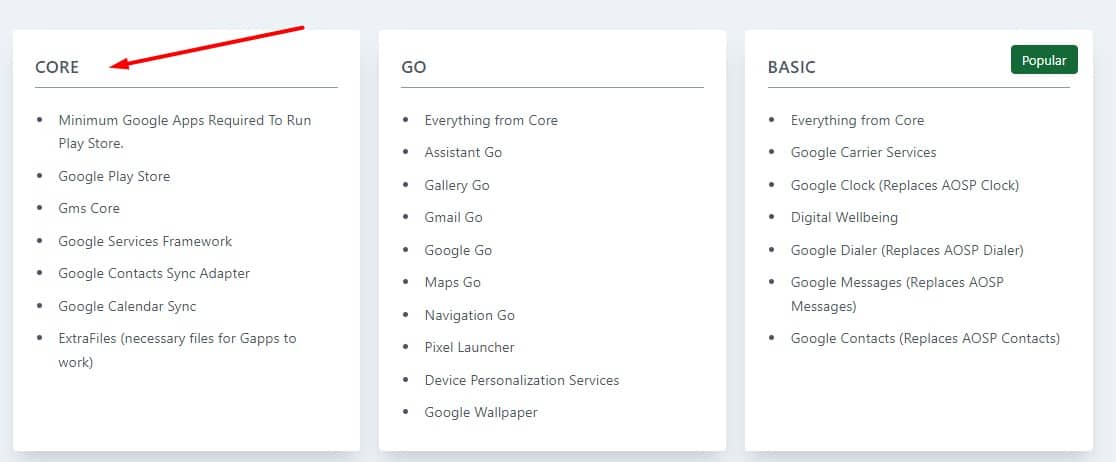
Click the link above; then scroll down and click the “Download Now” button.- On SourceForge, go to “Releases”
- Next go to the folder that matches the Android version you downloaded in the first step above. My example uses the “Android-15” folder.
- Then go to a version date you prefer. I just chose the most recent date.
- Finally, download the file with “Core” in the name.
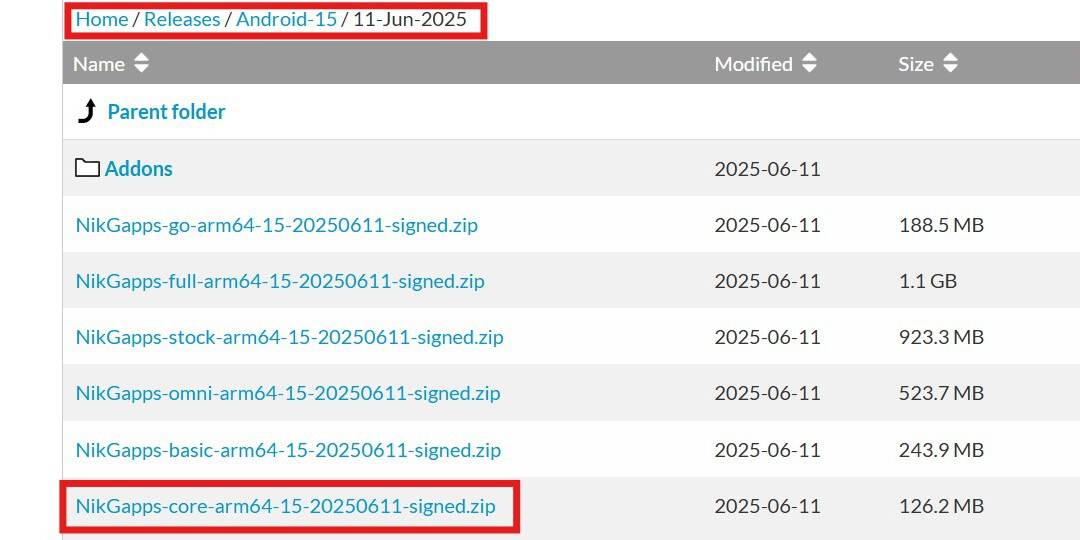
(The “Core” package is enough for a Raspberry Pi. The important part is Google Play Store, so anything else can be added later.)
I recommend copying the “NikGapps” or “OpenGapps” zip file to your USB drive right away.
It’s easier than downloading it from inside Android. I’ll show you how to install them later.
Warning: Make sure your USB drive is formatted as a FAT32 file system.
It won’t work as other types.
Flash the SD Card With LineageOS
Next, we need to prepare the SD card as usual. You can use either Raspberry Pi Imager or Balena Etcher for this, it doesn’t matter which one.
Here are the steps with Raspberry Pi Imager:
- Launch Raspberry Pi Imager. The interface looks like this:
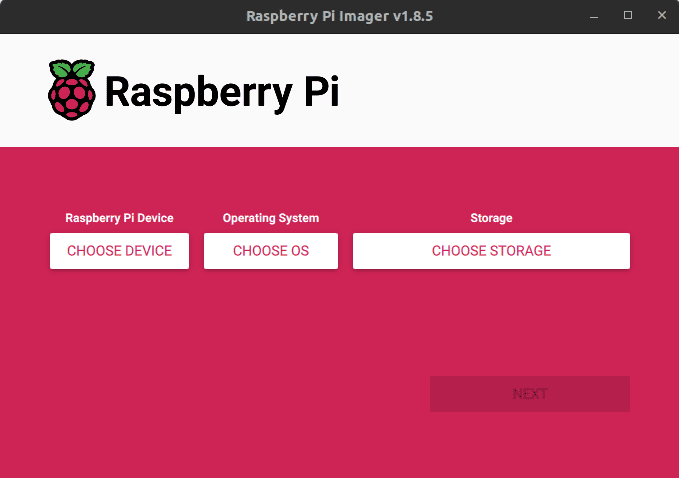
- Click Choose OS, scroll down to “Use custom” and then select the LineageOS image file from your Downloads directory.
- Insert your SD card into your computer, and select it under Storage.
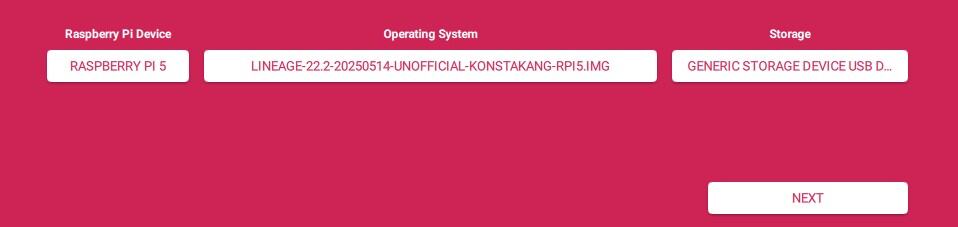
- Click the NEXT button to start.
When asked if you want to apply “OS customisation” settings, hit “NO,” then “YES” to confirm.
Imager will now start writing the image to your media.
A few minutes later, your SD is ready, and you can insert it into your Raspberry Pi.
I’m moving through these steps quickly because they’re similar to what you do when testing other systems. But if you’re new to the Raspberry Pi environment, you may want to try a more detailed approach. I highly recommend reading Master Raspberry Pi in 30 Days. It will teach you everything you need to feel more confident with this kind of project.
Optional: Booting LineageOS From a USB Drive or NVMe Drive
Note: If you’ve written the image to a USB drive or NVMe drive, you’ll need to modify config.txt before booting with your Pi.
Here’s how to make the change:
- View the files on the drive you just flashed the image onto.
- Open config.txt with a text editor.
- Change this section:

- You only want to uncomment one line.
- In the example above, I wanted to boot from USB. So I uncommented the 2nd line by removing the “#” at the front and adding “#” to the others.
(For NVMe, you would uncomment the 3rd line and comment out the top 2.)
Boot to LineageOS
Start your Raspberry Pi. The first boot will take a bit longer, as the system needs to initialize the configuration in the background.
On newer versions, you should get a welcome wizard to configure settings. It’ll let you connect to Wi-Fi, set your time zone, and other things.
Note: If your display is not adjusted correctly, use the keyboard arrows to reach the start button on the first screen. Almost all the following steps were working fine, just have to do the same thing once or twice after that.
Then, you’ll access the Android desktop directly.
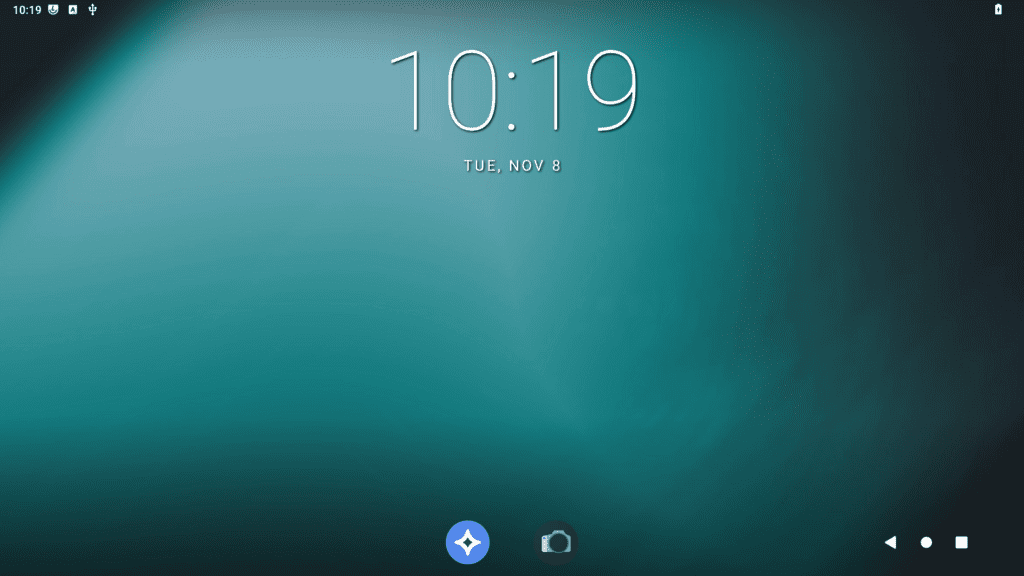
Depending on your goal, you can start working with the basic apps (browser, files, etc.).
To access them, click and drag up the bottom bar.
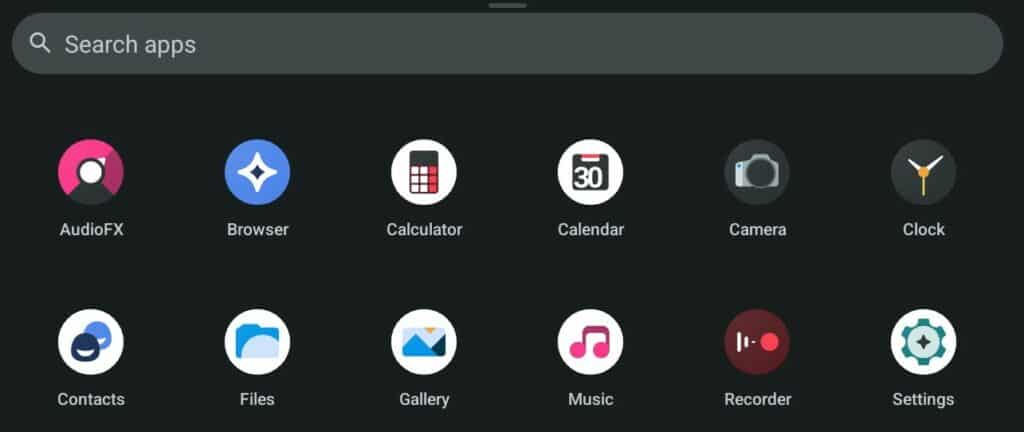
But you’re probably not here to use the basic email and browser apps; there’s not much you can do with only the default apps. That’s why we’ll install the Google Play Store next.
Configure Android Settings
If you haven’t done it with the welcome wizard already, now is a good time to adjust the default settings. Go to the Settings app to configure your Internet connection, language, date/time, etc.
I’m using my Raspberry Pi 5 with the Ethernet cable plugged in, but it won’t connect to my network. If you’re in the same situation, start by configuring the Wi-Fi network. It will then synchronize with the time server and fix the date/time for you.
Installing Google Play Store on Android
Now that the Android system is installed and configured, we need to install NikGapps to allow us to use the Play Store and install all the usual applications.
You’ll feel like a hacker doing this, as it’s not a common process. But don’t worry, I explain all the steps in detail.
Reboot in Recovery Mode
First, we need to boot LineageOS in recovery mode to install Google Apps.
To do this, we need to unlock access to this mode by enabling the advanced restart.
Here’s how:
- Open the Settings app.
- In the search bar, type “recovery” and select the first result.

- Scroll down and enable the option “Advanced restart”:
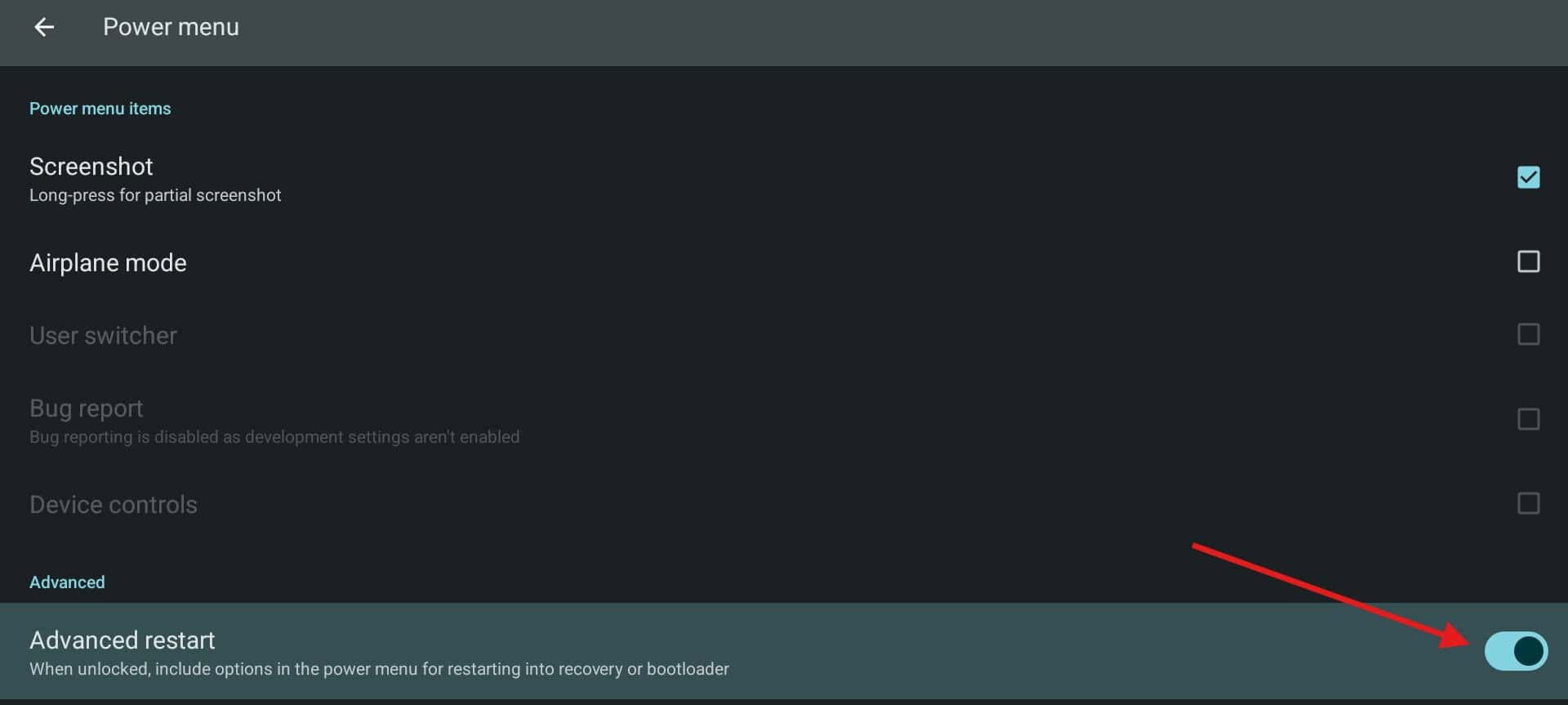
- Hold down the F5 key to bring up the power options.
Then click Restart > Recovery: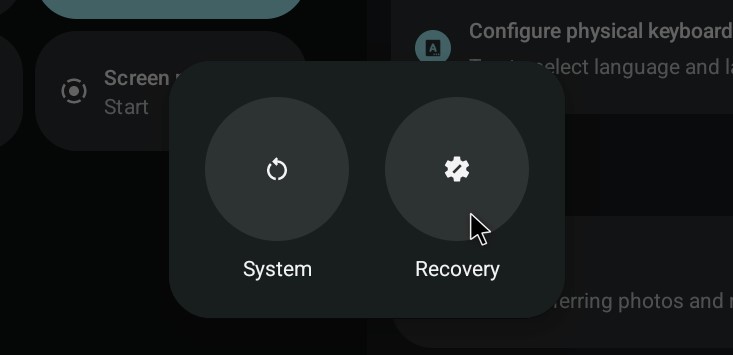
Wait a few seconds for the recovery mode to start.
The system will now reboot in recovery mode.
The main interface looks like this:
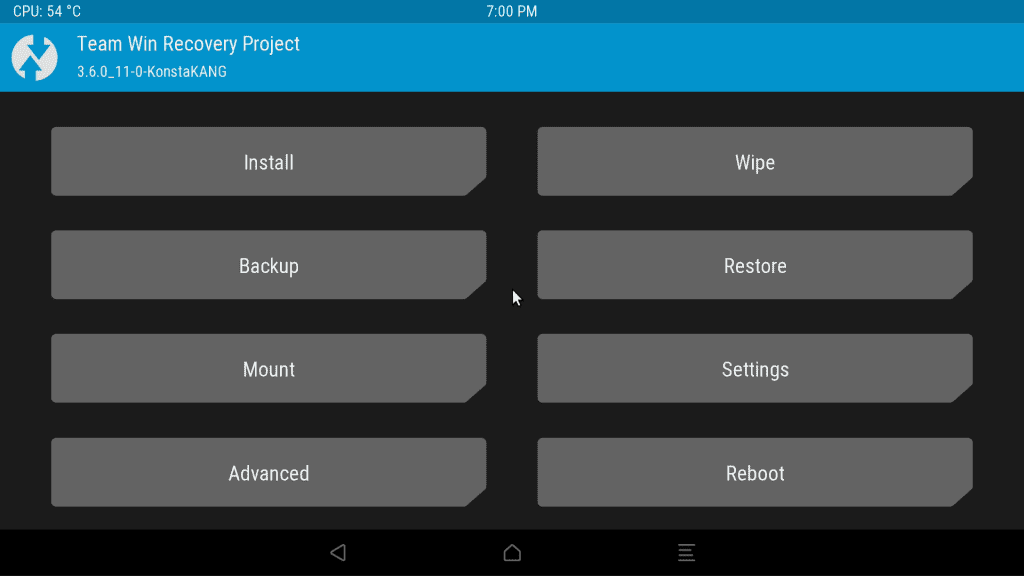
We can now begin installing the Google Apps store.
Install Google Apps
Once in recovery mode, follow this procedure:
- Plug in your USB drive with the Google Apps zip file on it.
- Click “Mount”.
This is where you choose which partition to mount (= making the USB drive accessible).
We need to mount the USB, so checkmark the USB item from the list. - Then, go back to the main menu, and click Install.
- Click Select Storage, and when the popup appears, choose your USB drive from the list.
- Finally, your files should appear.
Click on the NikGapps zip file to install it: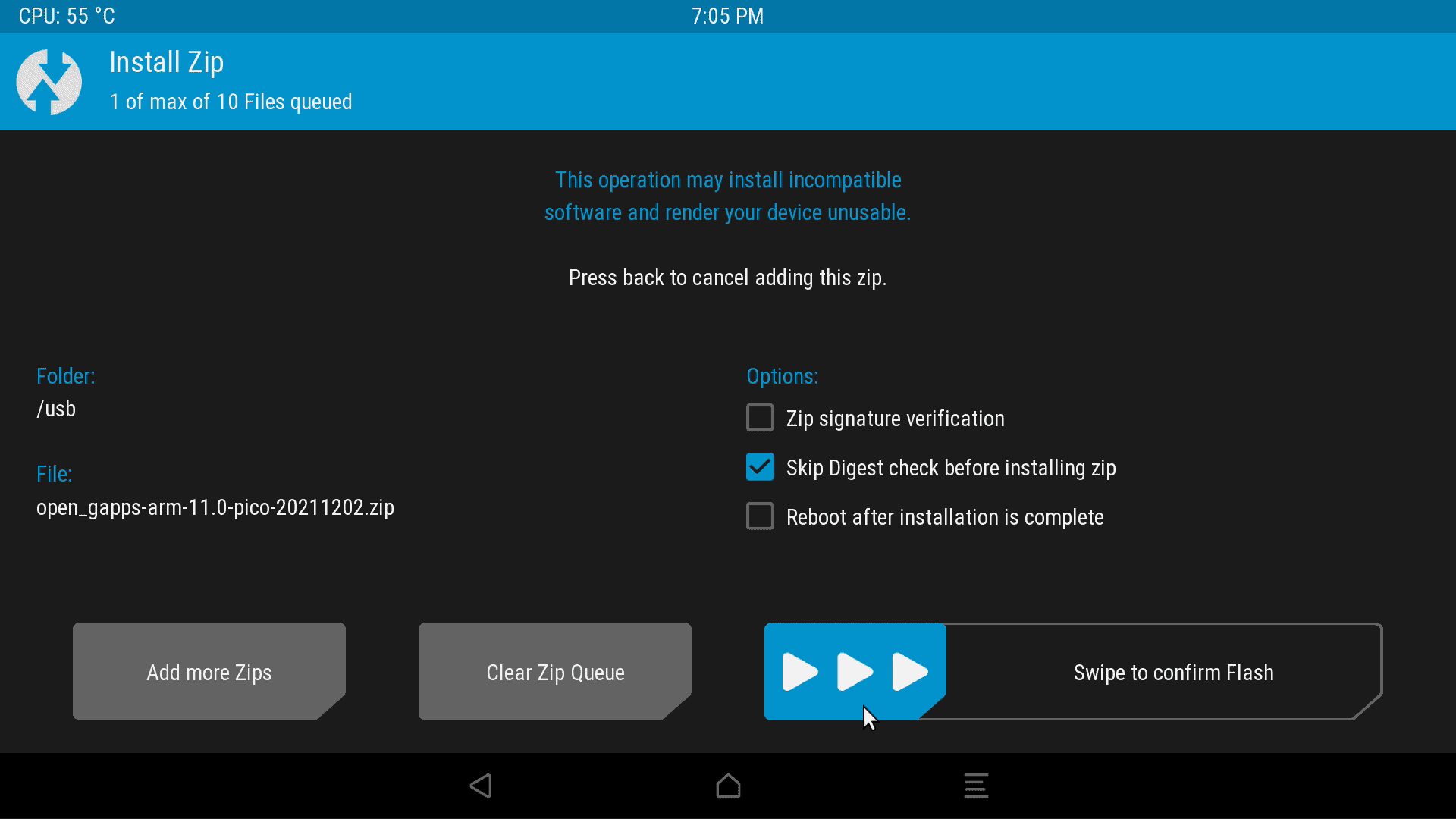
Swipe to confirm, there is nothing else to change.
Installation will proceed.
(Don’t choose the Reboot button that appears, as it’ll take you back to recovery mode.) - Use the home button to go back to the main menu. Choose Reboot > System to restart in normal mode.
You’re done! Your Raspberry Pi will now restart in normal mode.
Once on the Android desktop, you’ll now see that the Play Store is available in your apps list.
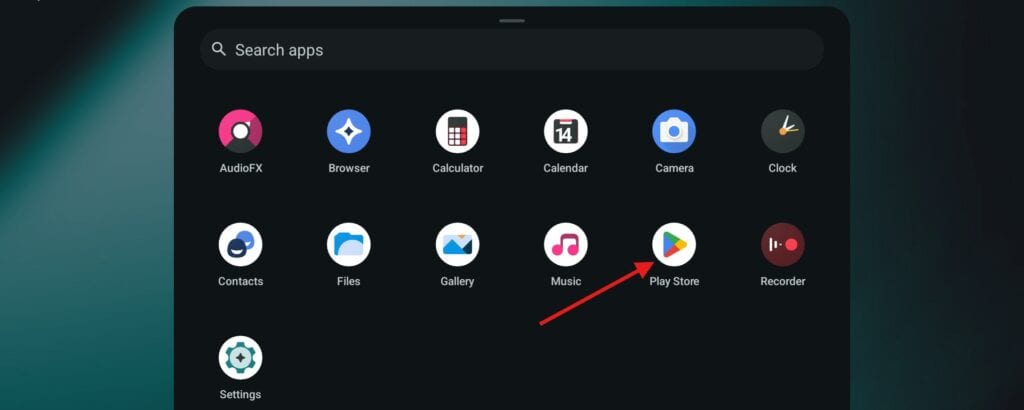
Sign In to the Play Store
The last step is to sign in on Google Play, as you would for any Android device.
Open the Play Store app and try to sign in with your Google account:
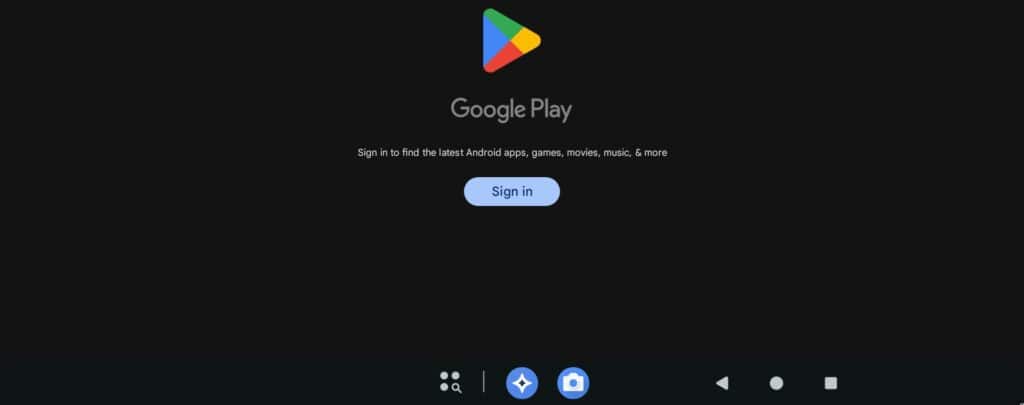
You may get some error messages during this process, asking if you want to close or wait: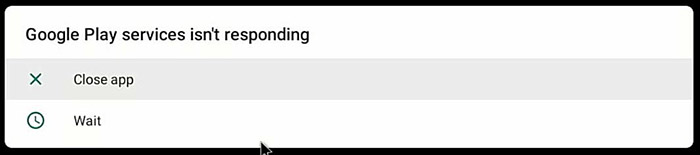 Keep choosing “Wait” until you manage to log in.
Once logged in, you can close the app and reboot the device.
After the reboot, everything should be fine.
You can now install any app or game you want on your Raspberry Pi :).
Video Demonstration
I have a video on my YouTube channel guiding you through the installation of Android 12. You can watch it here for an example of the whole process:
Related Questions
Can you run AndroidTV on Raspberry Pi?
Yes, but Android TV only works on more recent Raspberry Pi models, with a custom image of LineageOS from Konstakang. It can’t run on Raspberry Pi 3B+ and lower with this method.
If you have a Raspberry Pi 5, Pi 4, or Pi 400, you can follow the same steps and pick AndroidTV instead of Android while downloading the image. The other steps are very similar (the interface is slightly different, but you’ll find your way thanks to the developer website).
Watch this other video:
That’s it! We finally found a way to have Android working better than ever on Raspberry Pi, and it’s not very difficult to install. We don’t need any account (except Google), and it’s free.




