

Tutorials
How to Change and Customize Start Menu
🔻 Speed Scroll 🔻
Customizing the Start Menu in Windows 11 allows you to create a personalized workspace that enhances productivity and makes navigation easier. With various options available, you can change the layout, pin your favorite apps, and adjust the overall appearance to suit your preferences. In this guide, we’ll explore how to effectively change and customize the Start Menu in Windows 11, helping you create a user-friendly environment tailored to your needs.
TABLE OF CONTENTS
- How to Change the Pinned Apps of the Start Menu
- How to Change the Recommended Apps And Files
- How to Change the Background Color of the Start Menu
- How to Change the Location of the Start Menu
- How to Move Icons Around the Start Menu
- How to Create Start Menu Folders in Windows 11
- How to Change the Layout of the Start Menu
- How to Change and Customize Start Menu in Windows 11 – FAQs
How to Change the Pinned Apps of the Start Menu?
Step 1: Click on the Windows icon on the taskbar.
Step 2: Right-click on the app you want to unpin.
Step 3: Select “Unpin from Start” from the context menu.
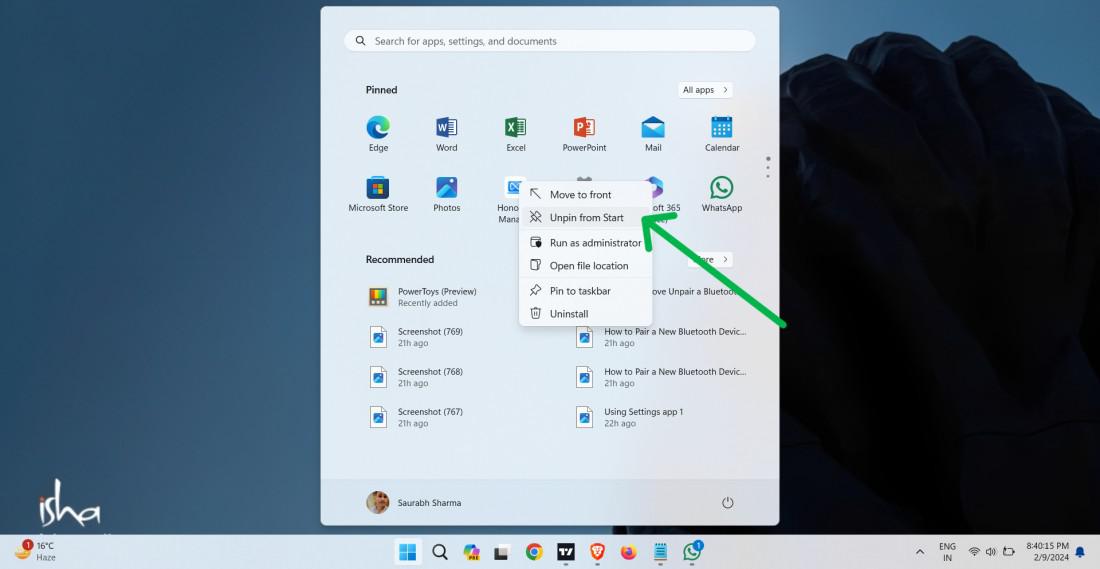
Step 4: To pin a new app, find it in the search bar, right-click on it, and select “Pin to Start.”
How to Change the Recommended Apps And Files?
Step 1: Open Settings by pressing Win + I.
Step 2: Go to “Personalization” > “Start.”
Step 3: Toggle off options like “Show recently added apps“, “Show recently opened items.” and “Show recommendations for tips“
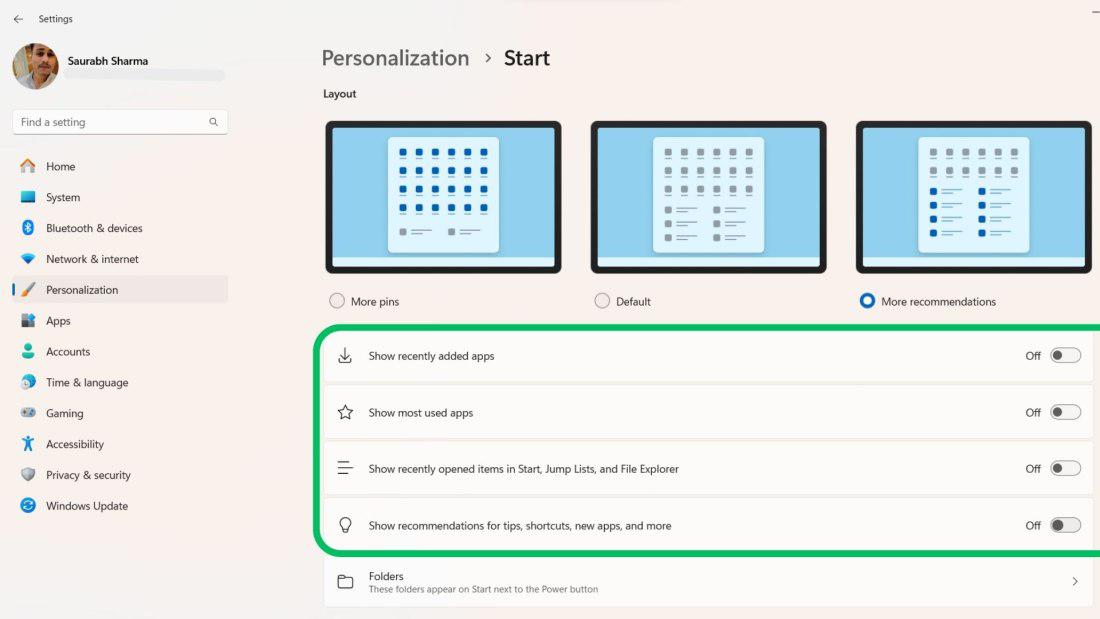
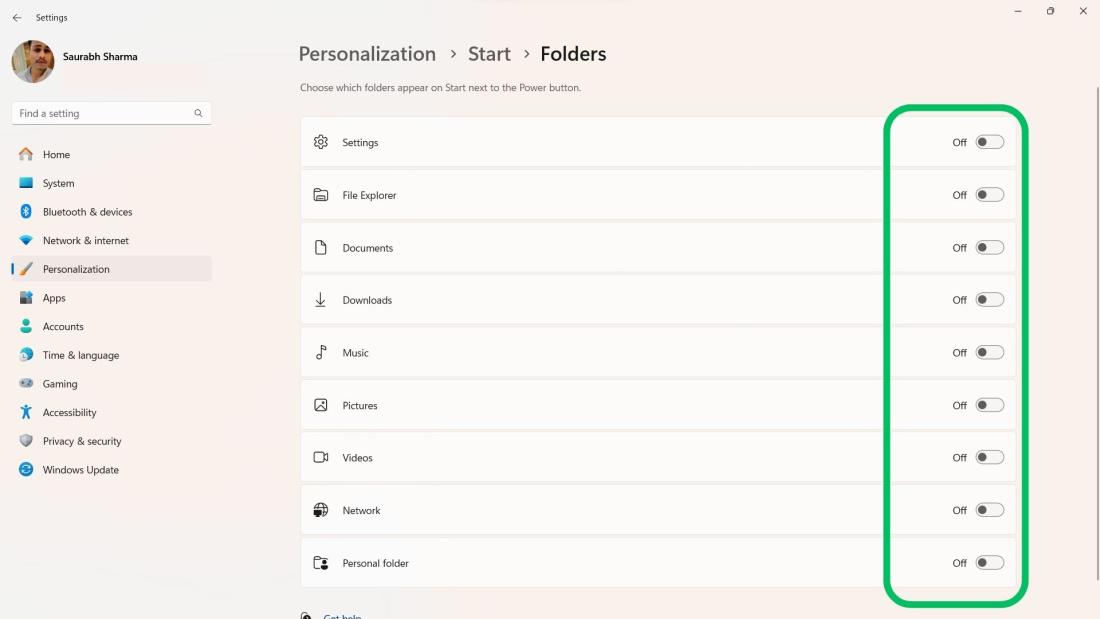
Step 4: Click on “Folders“
Step 5: Toggle off Documents, Music, Pictures, and Downloads folders, etc.
How to Change the Background Color of the Start Menu?
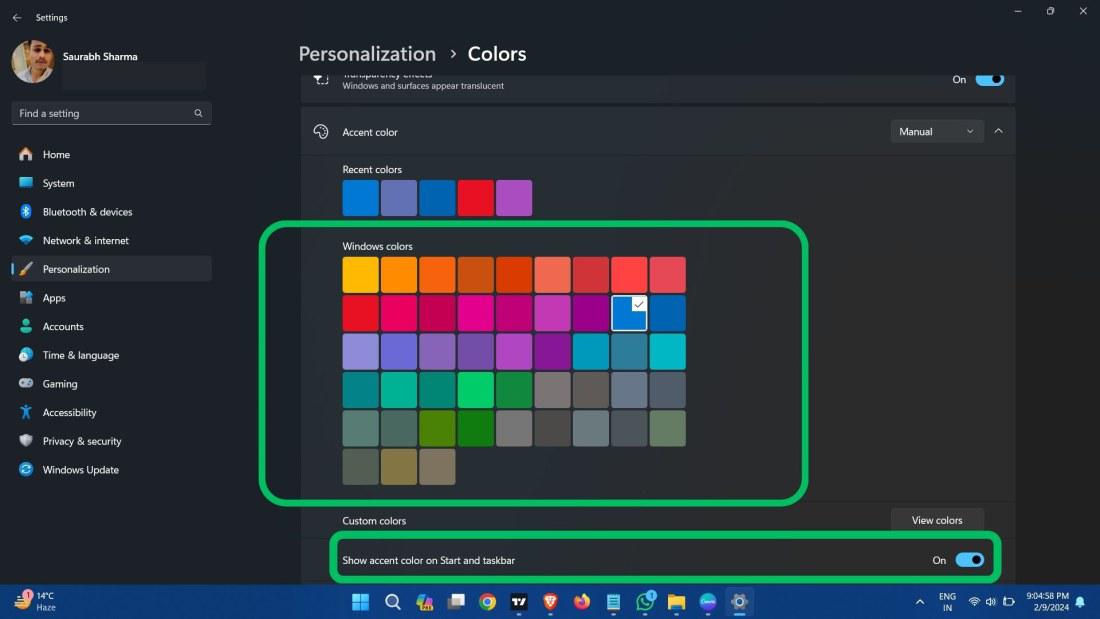
Step 1: Press Win + I to open settings then navigate to “Personalization” > “Colors“
Step 2: From the Choose Your Mode dropdown menu Select “Dark Mode“
Step 3: Expand the “Accent Color” then from the color list select any color
Step 4: Toggle on the “Show accent color on Start and taskbar”
How to Change the Location of the Start Menu?
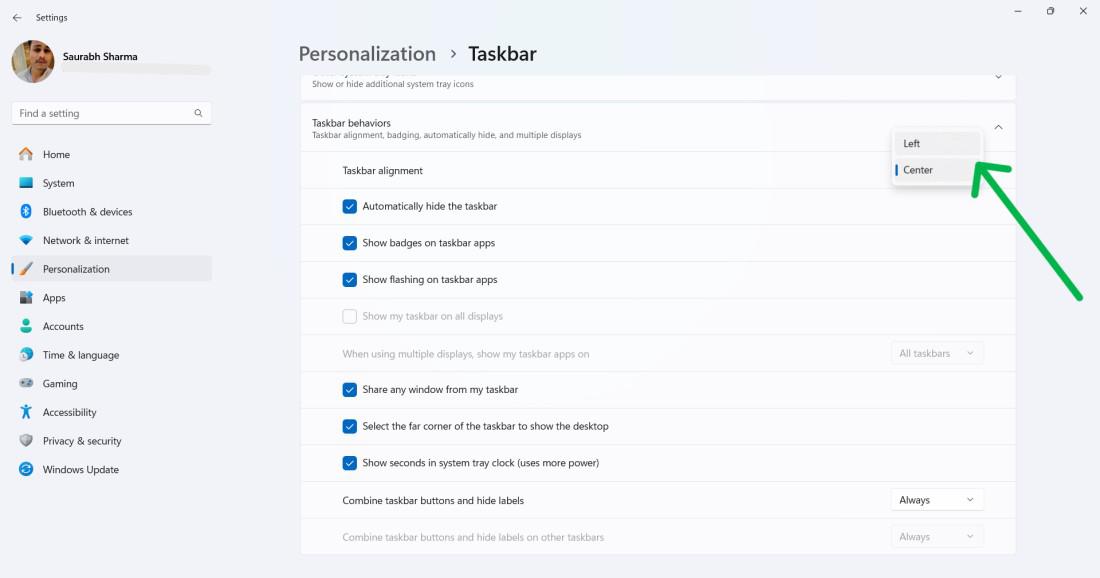
Step 1: Press Win + I to open settings then navigate to “Personalization” > “Taskbar“
Step 2: Expand the Taskbar behaviors from the dropdown you can select align Left or Center
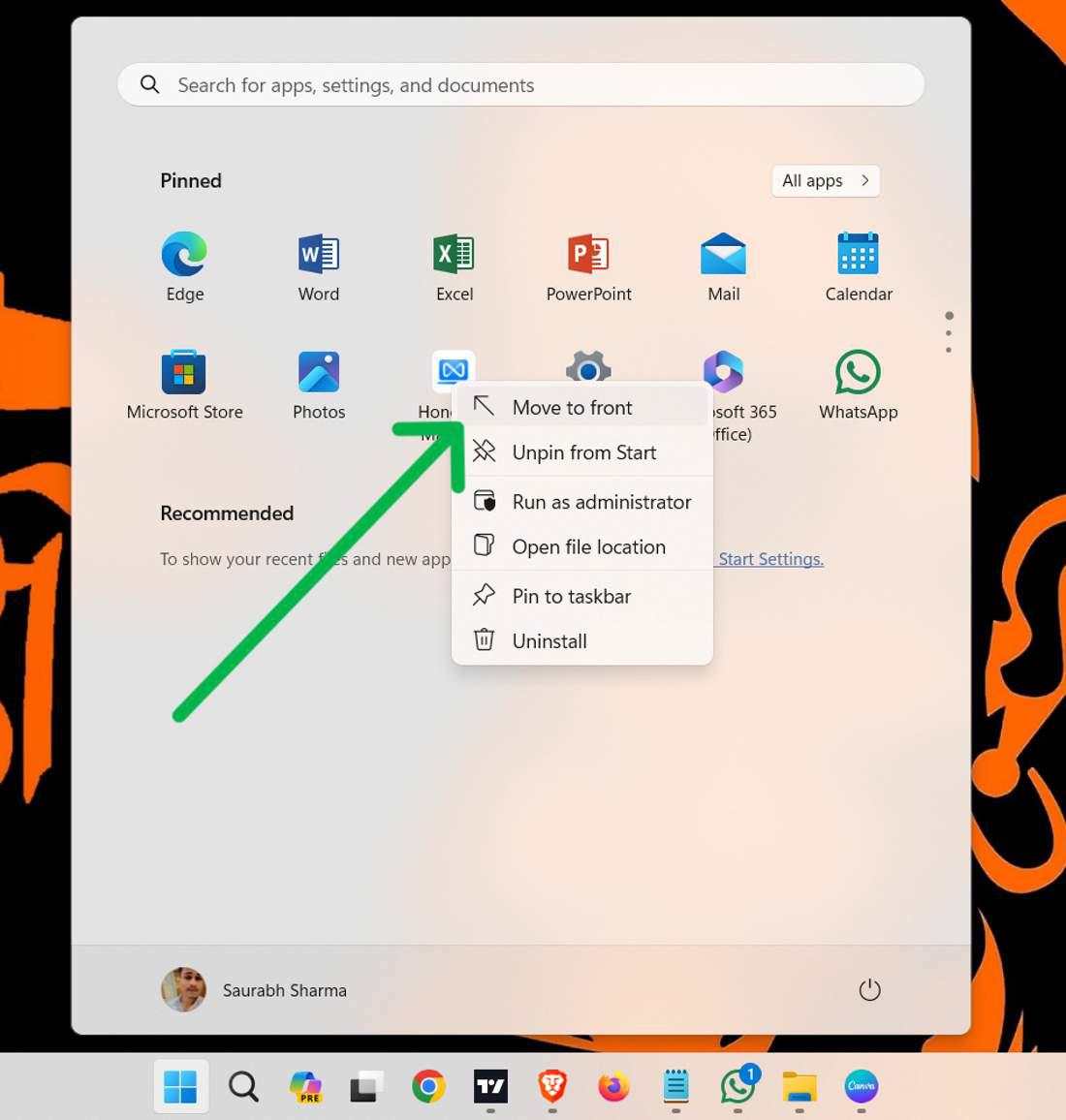
How to Move Icons Around the Start Menu?
To adjust the position of icons in the Start menu, right-click on an app and select “Move to front” or “Drag and drop” to adjust their placement.
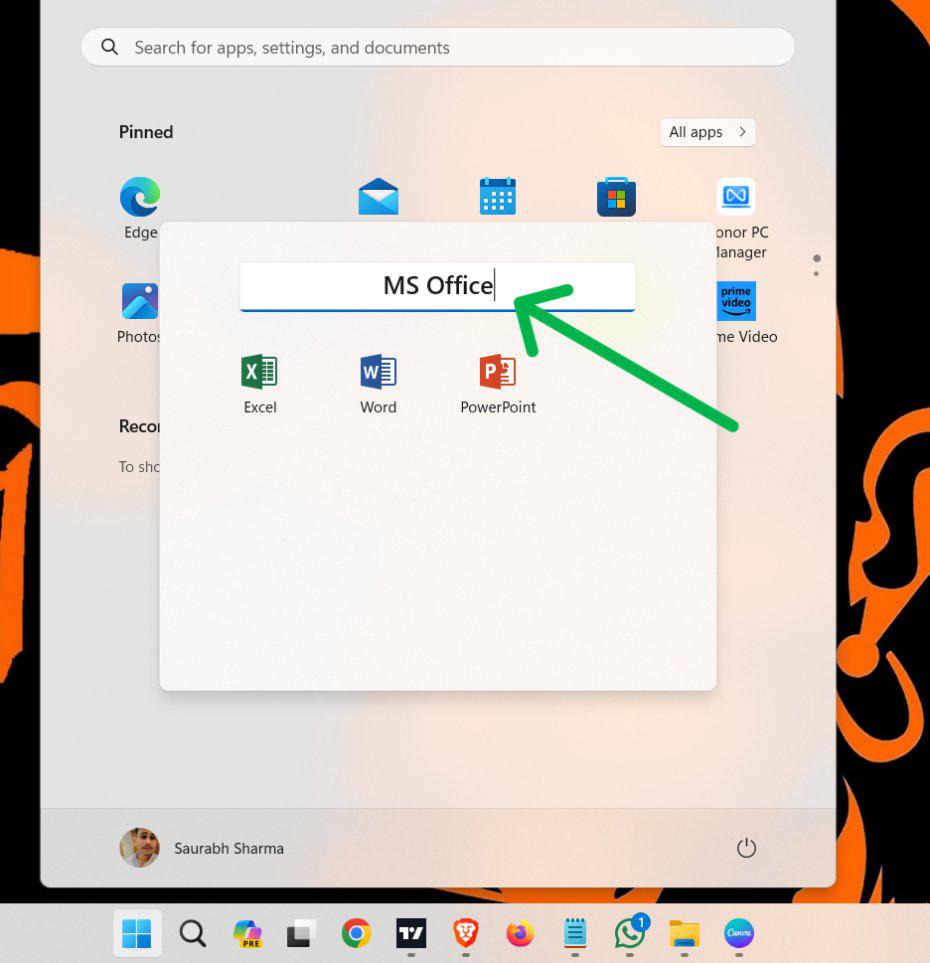
How to Create Start Menu Folders in Windows 11?
Step 1: Drag one app icon on top of another to create a folder.
Step 2: To add a new name, click the folder and then the name box.
Step 3: To add more apps to the folder, drag and drop them onto the folder icon.
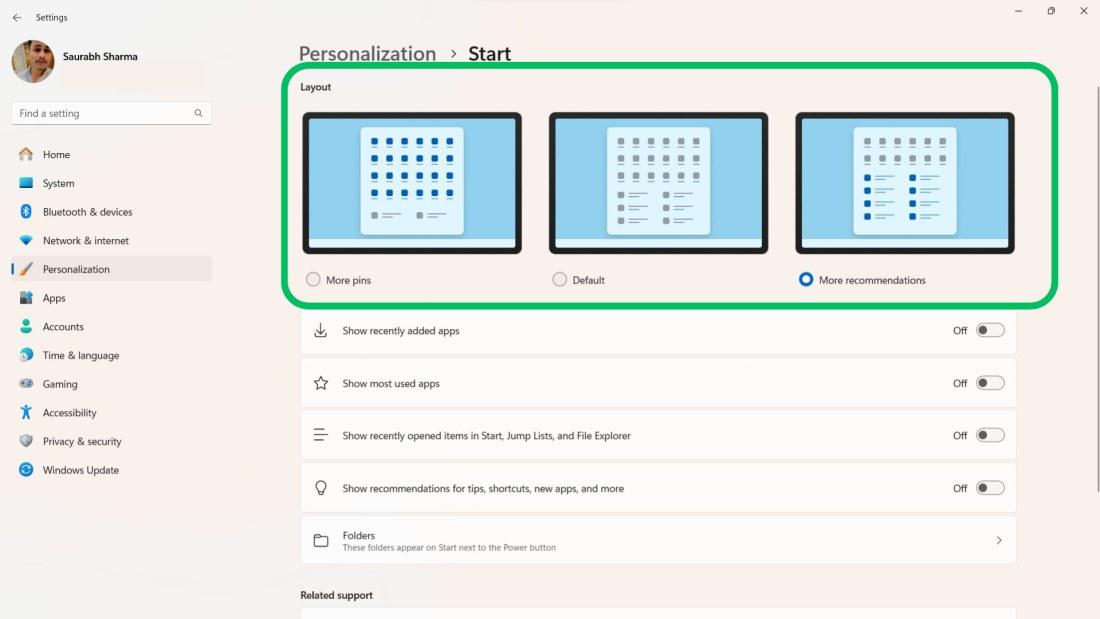
How to Change the Layout of the Start Menu?
Step 1: Press Win + I to open settings then navigate to “Personalization” > “Start“
Step 2: Under the Layout section, You will see three design examples you can select any design
Conclusion
Changing and customizing the Start Menu in Windows 11 is a straightforward process that can significantly improve your user experience. By following the steps outlined above, you can personalize your Start Menu to include your favorite apps, adjust its layout, and enhance its functionality. Take the time to explore the various customization options available, and enjoy a Start Menu that works best for you.
How to Change and Customize Start Menu in Windows 11 – FAQs
How do I pin apps to the Start Menu in Windows 11?
To pin apps to the Start Menu, open the Start Menu and locate the app you want to pin. Right-click on the app and select Pin to Start. The app will then appear in the Start Menu for easy access.
Can I change the size of the Start Menu in Windows 11?
Yes, you can change the size of the Start Menu in Windows 11. Simply drag the edges of the Start Menu to resize it as desired. This allows you to display more apps or make the menu smaller for a more compact look.
How can I remove apps from the Start Menu in Windows 11?
To remove apps from the Start Menu, right-click on the app you want to remove and select Unpin from Start. This will remove the app from your Start Menu without uninstalling it from your system.
Is it possible to change the layout of the Start Menu in Windows 11?
Yes, you can change the layout of the Start Menu by accessing the Settings. Go to Settings > Personalization > Start. Here, you can choose to show more tiles or enable/disable the option to show recently added apps, which allows you to customize the layout according to your preferences.
How Do I Rearrange Apps In Windows 11 Start Menu?
To rearrange apps and folders in the Windows 11 Start Menu, use drag and drop: Click and hold an app icon or folder, drag it to your preferred location. Or else, use the “Move to Front” feature for faster control.




