
🔺 For cellphones 🔺
Windows 11 offers an elegant and modern design and because of this, some users might not find it handy while working. Take the Windows 11 taskbar as an example, which has drastically changed compared to Windows 10. So, if you want to make adjustments to the Windows 11 taskbar, you may use Windows Registry and any trusted third-party tools. Let’s understand this in step guidance to perform this action.
TABLE OF CONTENTS
- Method 1: Using Windows Registry
- Method 2: Using Third-Party Tools
- Method 3: Using Windows Display Settings
- How To Change Taskbar Size in Windows 11 – FAQs
Method 1: Using Windows Registry
The Windows Registry is a powerful tool that stores low-level settings for the operating system and for applications that opt to use the registry. Here’s how you can use it to change the taskbar size:
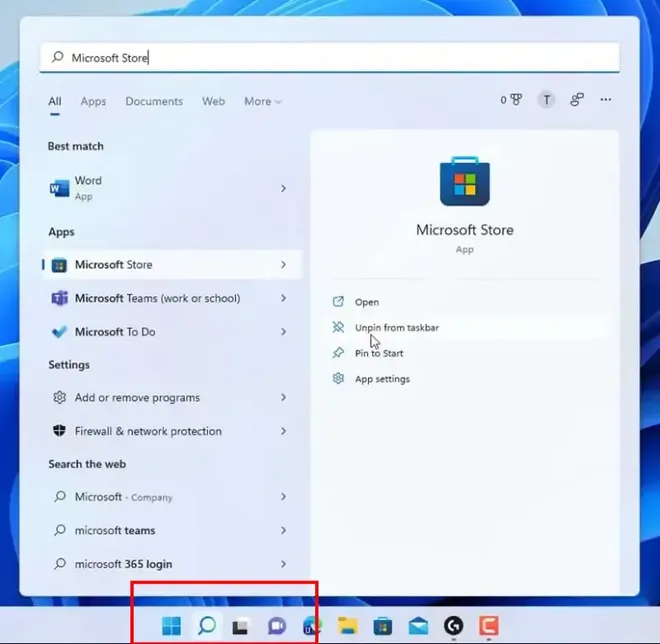
Step 1: Go to the Windows Start Menu
Press Win + S to open the Windows Search box.
Step 2: Navigate to Windows Registry Editor
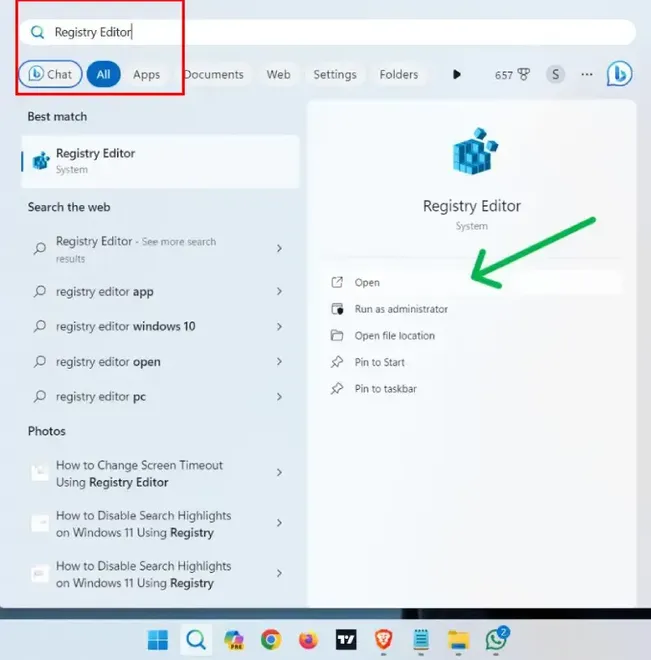
Type “Registry Editor” in the search bar and hit Enter open it.
Step 3: Navigate to DWORD under Advanced Options
Navigate to the following path:
HKEY_CURRENT_USER\Software\Microsoft\Windows\CurrentVersion\Explorer\Advanced
Step 4: Rename the file as TaskbarSi
Make a right-click on “Advanced” and navigate to “New > DWORD (32-bit) Value“. Name the value as “TaskbarSi“
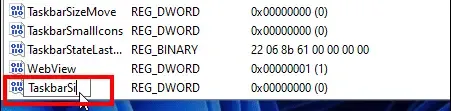
If TaskbarSi already exist then do create new value
Step 5: Enter the appropriate value as per “Icon Size”
Double Click “TaskbarSi” in value data input type any of the following number.
You have three options for the value data: 1, 2, or 3.
- 0 = Small icons
- 1 = Medium icons (default)
- 2 = Large icons
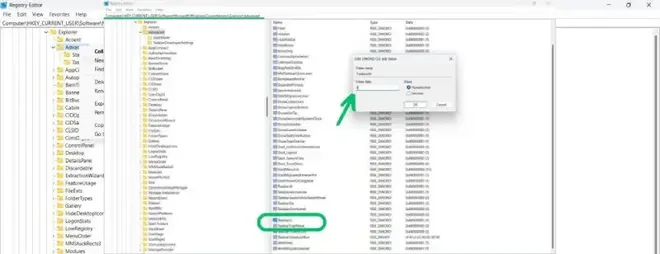
Step 6: Press OK and Restart the Windows Explorer
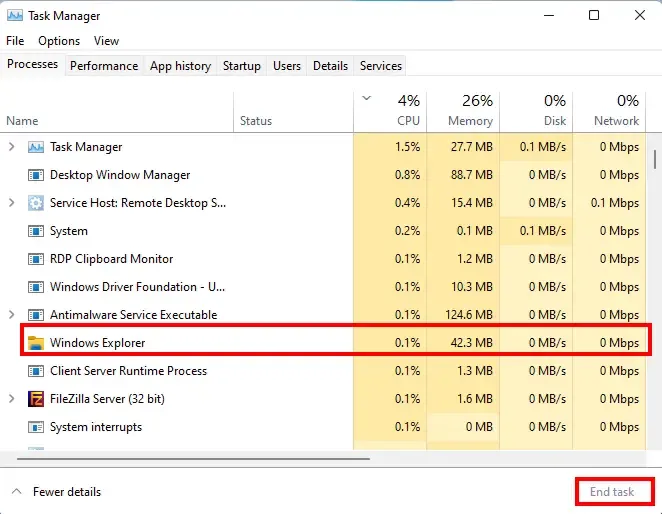
Press OK once the changes as made as per your preference. Now open Task manager using Windows Shortcut KeysCtrl + Shift + Esc or Press Win + X and click on “Task Manager” and click on “Windows Explorer” and End Task from the bottom right side.
You’ll now notice that your desired changes has been adjusted in your Windows 11 system.
Method 2: Using Third-Party Tools
You can also take help of any trusted third-party tool to customise the Windows 11 Taskbar Size as per your convenience. However, different tools will have different methods, so we’re defining a simplified method that can be more or less the same in every software.
Note: Ensure to download and install Third-party tools from its official website or from any trusted resouce.
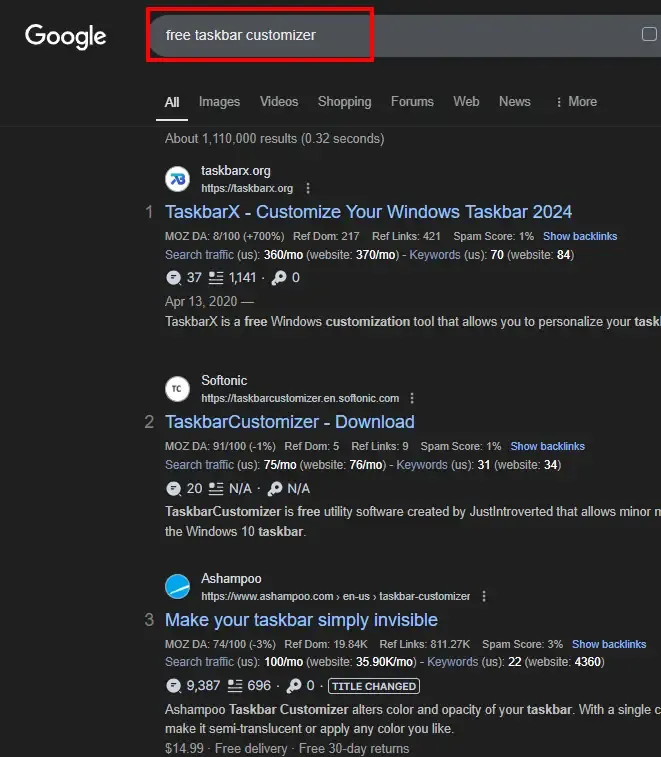
Step 1: Open web browser and search for Free Tasbar Size Customizer
You can use either Chrome, Edge or Firefox and look out the top 2-3 websites and select the tool as per your convenience. After visiting the top search results, select any high-rated tool and download it in your Windows 11 system.
Step 2: Complete the Installation and Open Taskbar Customizer tool
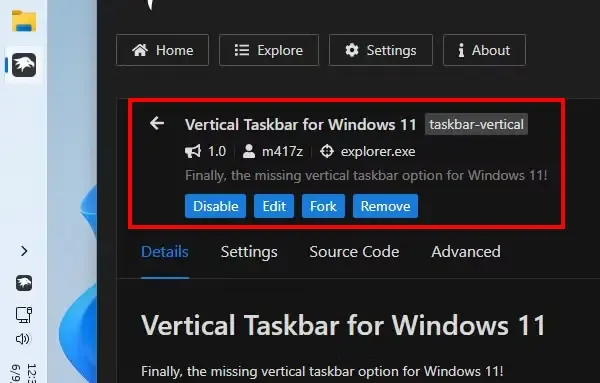
Open the tool and locate the Taskbar Size or any similar option within that tool.
Step 3: Make the desired changes
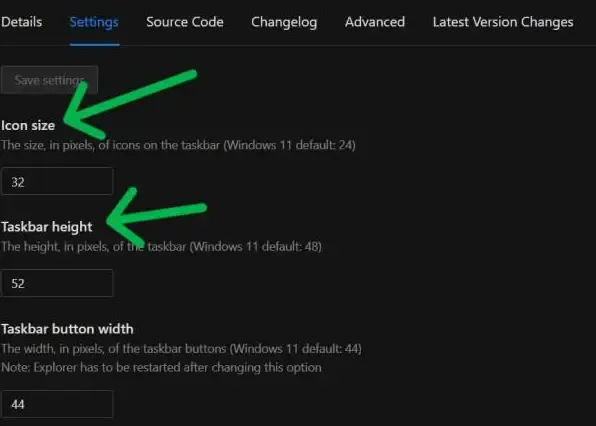
You can select positioning, size, colour, etc. of the Windows Taskbar and click on Apply to save the changes.
Method 3: Using Windows Display Settings
If you find difficulty while using Method 1, then you can also seek help of Windows in-built display settings. Here’s what you need to know:
Step 1: Open Windows Display Settings
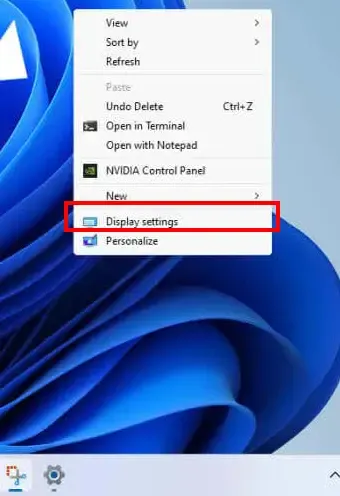
Make a right-click on the desktop and choose “Display Settings”
Step 2: Adjust Scale & Layout
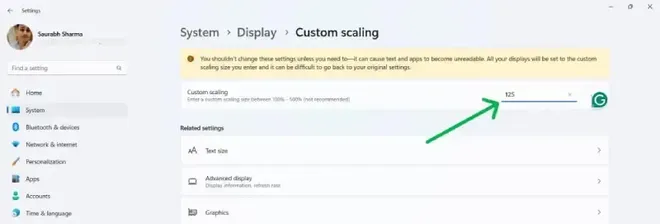
Scroll down and click on “Scale & layout”. Here’ you can adjust taskbar, apps, and text size as per your need. The recommended default settings is for 100%, you can make a click on Scale to make custom scaling and make the desired changes. Once the changes are made, click apply and exit the Display Settings.
Conclusion
Changing the taskbar size in Windows 11 is a quick and easy way to personalize your desktop layout and optimize your screen space. By following the above-mentioned methods in this guide, you can easily adjust your taskbar to create a more comfortable and efficient workspace.
How To Change Taskbar Size in Windows 11 – FAQs
How do I change the taskbar size in Windows 11?
Step 1: Open the Run dialog box (Win + R) and type
regedit, then press Enter.Step 2: Navigate to the following registry path:
HKEY_CURRENT_USER\Software\Microsoft\Windows\CurrentVersion\Explorer\AdvancedStep 3: Right-click in the Advanced folder, select New → DWORD (32-bit) Value, and name it TaskbarSi.
Step 4: Double-click TaskbarSi and set its value to:
0for a small taskbar.1for a medium taskbar.2for a large taskbar.Step 5: Restart your computer
Can third-party apps resize the Windows 11 taskbar?
Yes, apps like Start11 or TaskbarX allow customization of taskbar size and position, but they are not official Windows tools.
Does changing taskbar size affect taskbar icons in Windows 11?
Yes, resizing the taskbar also changes the size of taskbar icons. Larger taskbars will have larger icons, and smaller taskbars will have smaller icons.
What should I do if I want to revert the taskbar size to its original setting?
Open the registry editor and reset the “TaskbarSi” value to its original state (usually ‘1’ for medium size).
Will resizing the taskbar affect the functionality of pinned apps in Windows 11?
No, customizing the taskbar size in Windows 11 will not affect the functionality of pinned apps. The icons and functions will adjust automatically to fit the new taskbar size.


Watch the Series.

Watch the Series.
