
🔺 For cellphones 🔺
Core among the features you find in Windows 11 is the Start Menu, which gives you an efficient way to access and quickly launch programs, settings, and files. However, there is a variance of dissatisfaction from some users in relation to the malfunction of the Start Menu—it does not open or becomes unresponsive. Now, here are some step-by-step, clear ways you can fix the problem in the Windows 11 Start Menu.
Primary Terminologies
- Start Menu: the interface from which, under Windows, programs are opened, settings changed, and files opened.
- Task Manager: This utility displays the currently running programs and enables you to work with processes.
- Windows Update: With this service, you will be enabled to update your version of Windows with the latest patches and features.
- Windows PowerShell: It is a strong, command-line utility for managing systems and is hence known as PowerShell.
- SFC – System File Checker: This utility is responsible for checking corrupted Windows system files and fixing them thereafter.
Step-by-step methods to solve the Start Menu Issue
Step 1: Restart Windows Explorer
- This will restart Windows Explorer, which might help if your Start Menu freezes up or goes unresponsive.
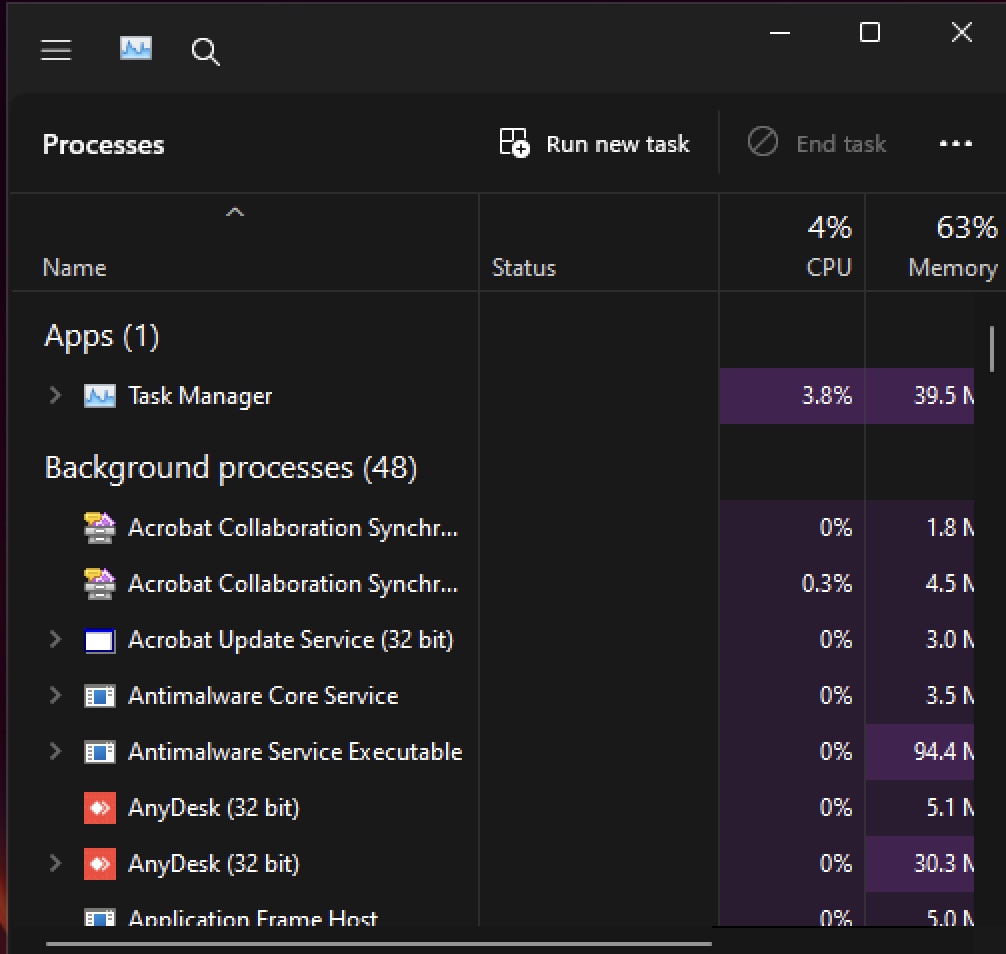
- Launch Task Manager: by using Ctrl + Shift + Esc or Ctrl + Alt + Delete then select Task Manager.
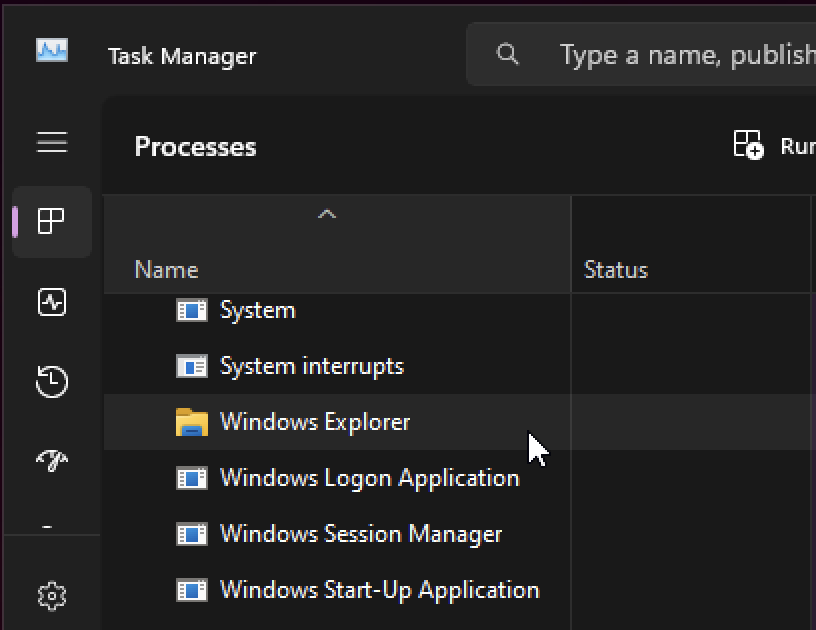
- On Task Manager, scroll down and find Windows Explorer under the Processes tab.
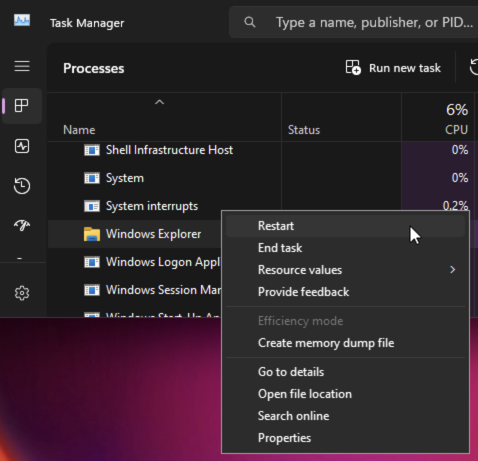
- Right-click Windows Explorer and click Restart.
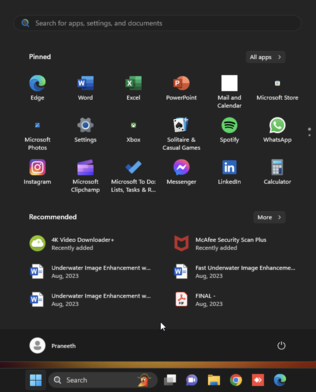
- This will reload the desktop, taskbar, and Start Menu. Now, try opening the Start Menu again.
Step 2: Windows Updates
- Some bugs, like a broken Start Menu, might be the result of using an outdated version of Windows 11.
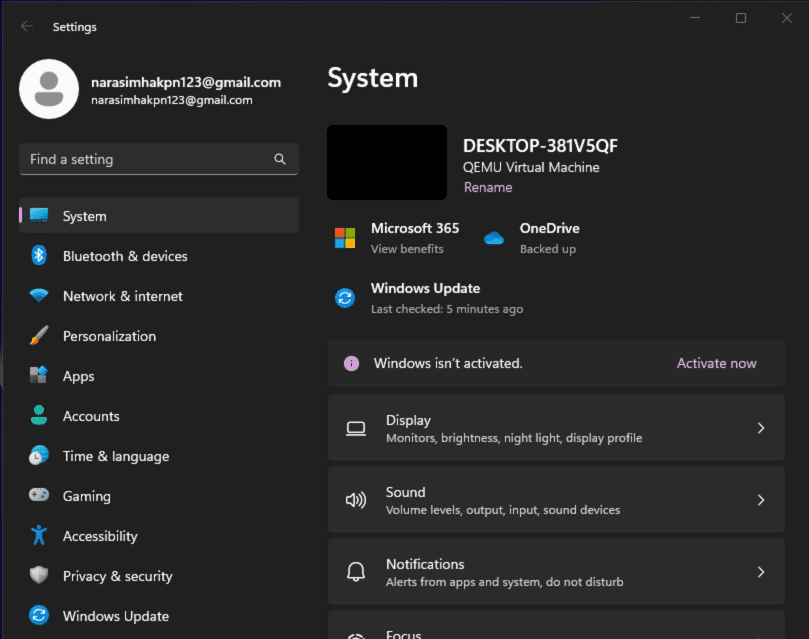
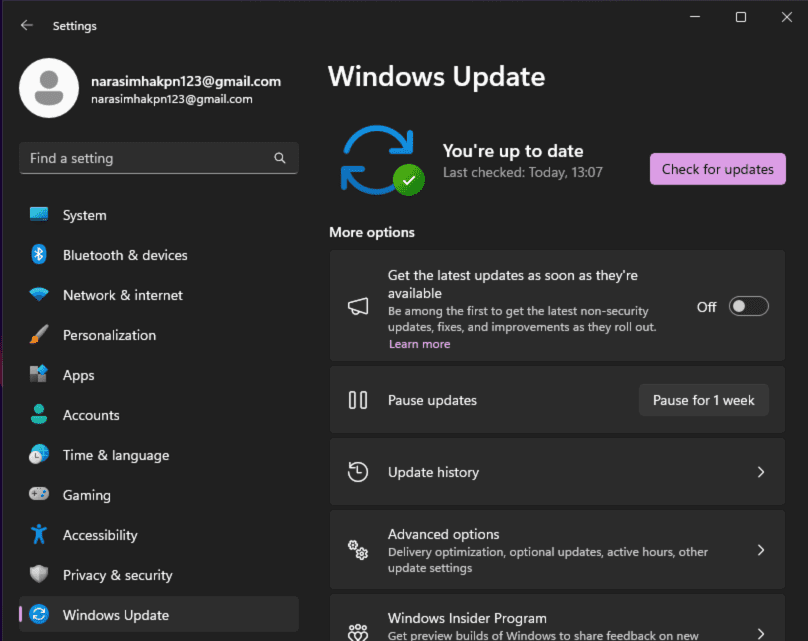
- Press Windows Key + I to open Settings.
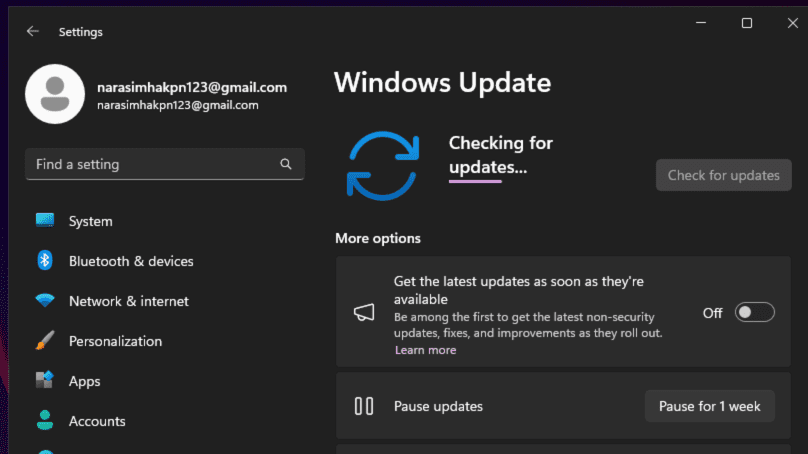
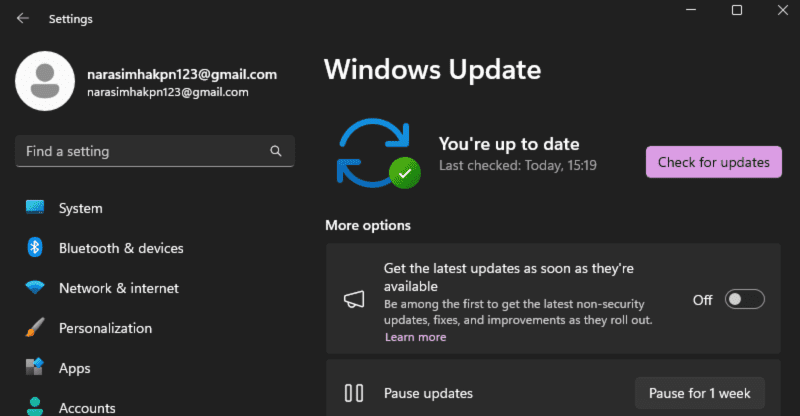
- Go open Windows Update, then click Check for updates.
- Proceed to download and install if there are updates available. After the installation, restart your PC and verify the Start Menu.
Step 3: Re-register the Start Menu Using PowerShell
- The problem is sometimes solved by re-registering the Start Menu.
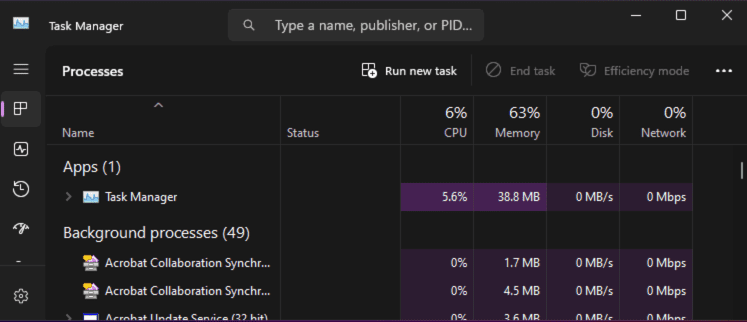
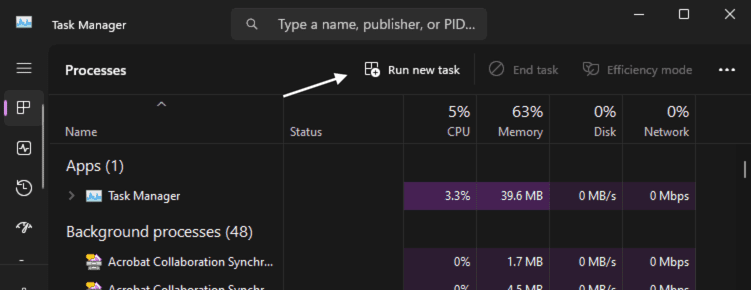
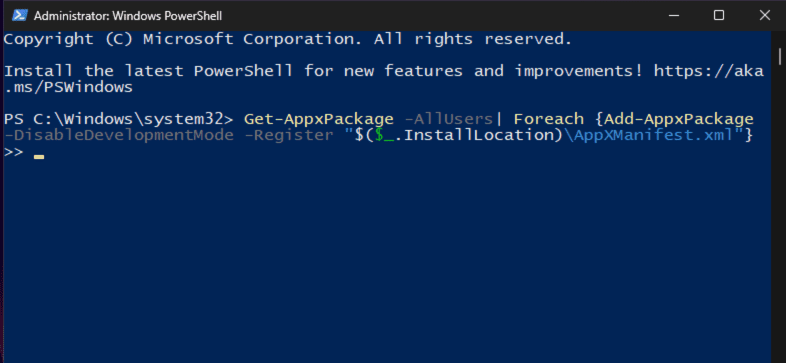
- Press Ctrl + Shift + Esc to open the Task Manager and click File > Run new task.
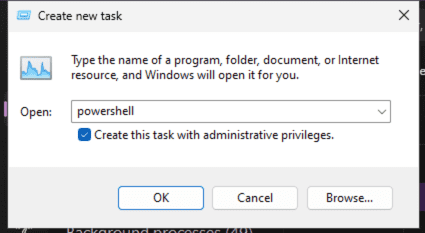
- In the box, type powershell; check the box that says Create this task with administrative privileges; and then click OK.
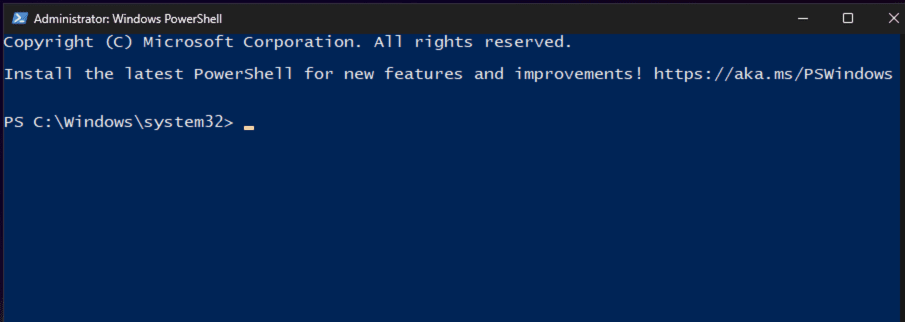
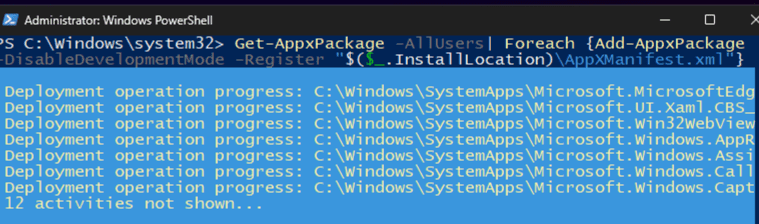
- In PowerShell, copy and paste the following command and hit the Enter key:
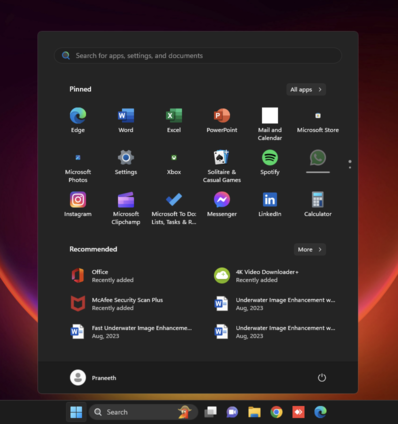
Get-AppxPackage -AllUsers| Foreach {Add-AppxPackage -DisableDevelopmentMode -Register "$($_.InstallLocation)\AppXManifest.xml"}After the command completes, restart a computer and then check for Start Menu.
Step 4: Run System File Checker (SFC) Scan
- If system files are corrupted, they may make the Start Menu malfunction.
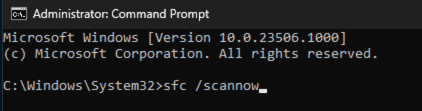
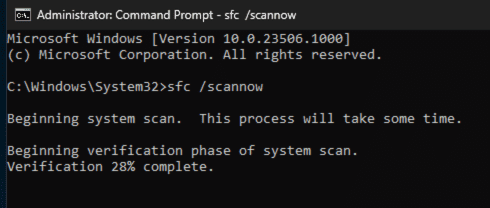
- Run Command Prompt as administrator by pressing the Windows Key + S, typing in cmd, right-clicking on Command Prompt, and then selecting Run as administrator.
- Type the following command and press Enter:
sfc /scannowThen, let the scan finish. If it finds corrupted files, it will repair them automatically. Restart your PC afterwards.
Step 5: Create a New User Account
- If the Start Menu works on the new account, which means the problem could be with the original user profile account.
- Press the Windows Key + I to open Settings and then click Accounts > Family & other users.
- Under “Other users” click Add account.
- Follow the on-screen steps and create a new local account. Log in to the account then check if the Start Menu opens up as per expectations.
Conclusion
If the Windows 11 Start Menu doesn’t work in the right way, then don’t you panic at all. Ways of fixing are quite easy: start everything with the restart of Windows Explorer or run the system updates; for more serious cases, Start Menu re-registration using PowerShell gets things into gear, even a new user profile.
How to fix Windows 11 Start Menu Not working issue – FAQs
Why isn’t my Windows 11 responding to the Start menu?
This may be due to one or more of several reasons: corrupted system files, an update that might not be upgraded, or problems within Windows Explorer itself.
May restarting my PC correct the issues in the Start Menu?
Yep, sometimes even the smallest glitches, including problems with the Start Menu, can be resolved simply by restarting.
How do I fix the Start Menu without resetting Windows?
You can restart Windows Explorer, run a System File Checker scan, or even re-register the Start Menu via PowerShell.
Can reinstalling Windows fix this problem with the Start Menu?
Reinstallation of Windows should be the last thing to do. First, more conventional troubleshooting techniques should be tried out: performing updates and system scans.
Is there a way to make an alternative possible with the Start Menu?
Programs and settings could be accessed via the Windows Key + X menu or Task Manager if the Start Menu was unresponsive.


Watch the Series.

Watch the Series.
